Verify your identity online in minutes
We’re required by law to collect information from you to verify your identity before we can provide you with financial products or services.
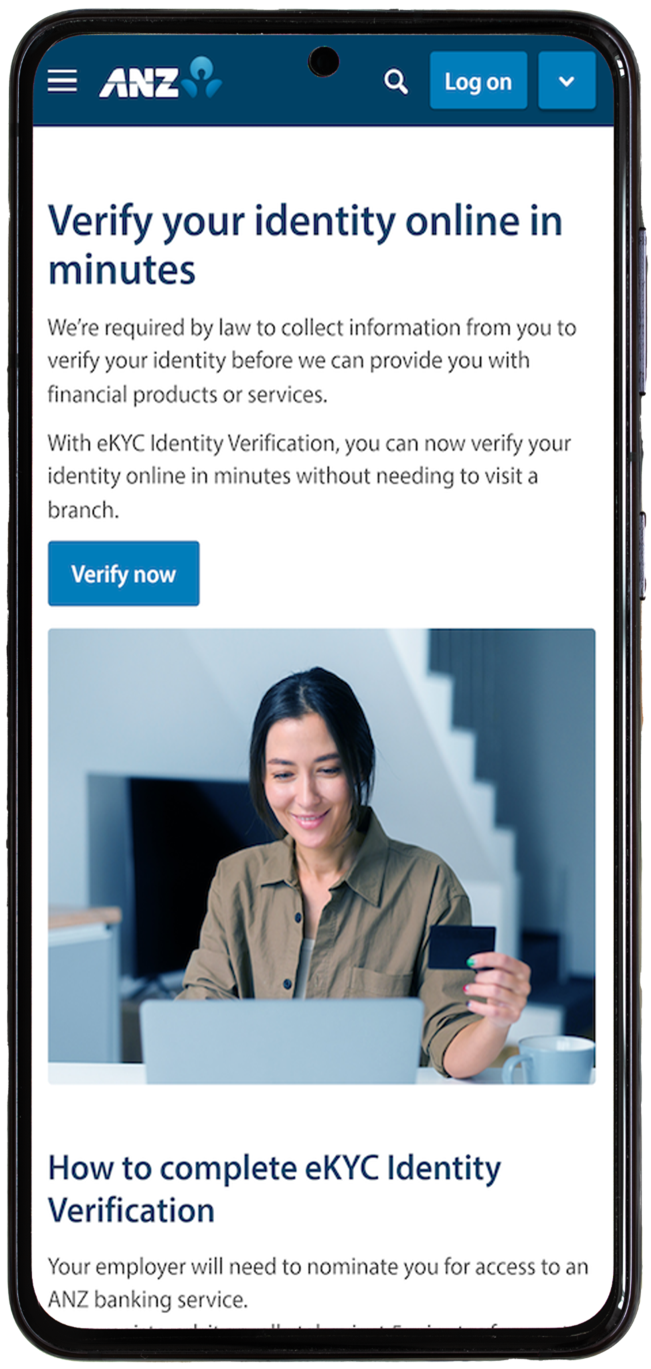
With eKYC Identity Verification, you can now verify your identity online in minutes without needing to visit a branch.
See below for information about the biometric information we collect, how it can be used, alternatives available and our Privacy Statement.


Start your application
✓ Log in to start your application
✓ Review and accept the terms and conditions

Provide your photo ID
Provide one of the following forms of photo identification:
✓ Driver’s licence
✓ Passport
Document must be an original, not a digital reproduction, photocopy or certified copy.

Complete facial recognition
✓ Take a photo of yourself using your device’s built-in camera.
Accepted identity documents

Collecting your information
Our identity verification process collects your biometric information when we compare your selfie photo with your photo in your identity document. We use this information to verify your identity and help prevent fraud. For example, to check the appearance of the person submitting the application matches the photo provided.
If you don't want ANZ to collect your biometric information, you'll need to verify your identity in person at a branch.
For more information, view our eKYC Identification Verification Conditions.
To find out more about how we collect, use and share personal information, including biometric information and processing, and your rights (including how to raise a complaint or biometric concern), please refer to the relevant Privacy Statement below:
Step 1: Go to the eKYC Identification Verification page and click Verify Now.
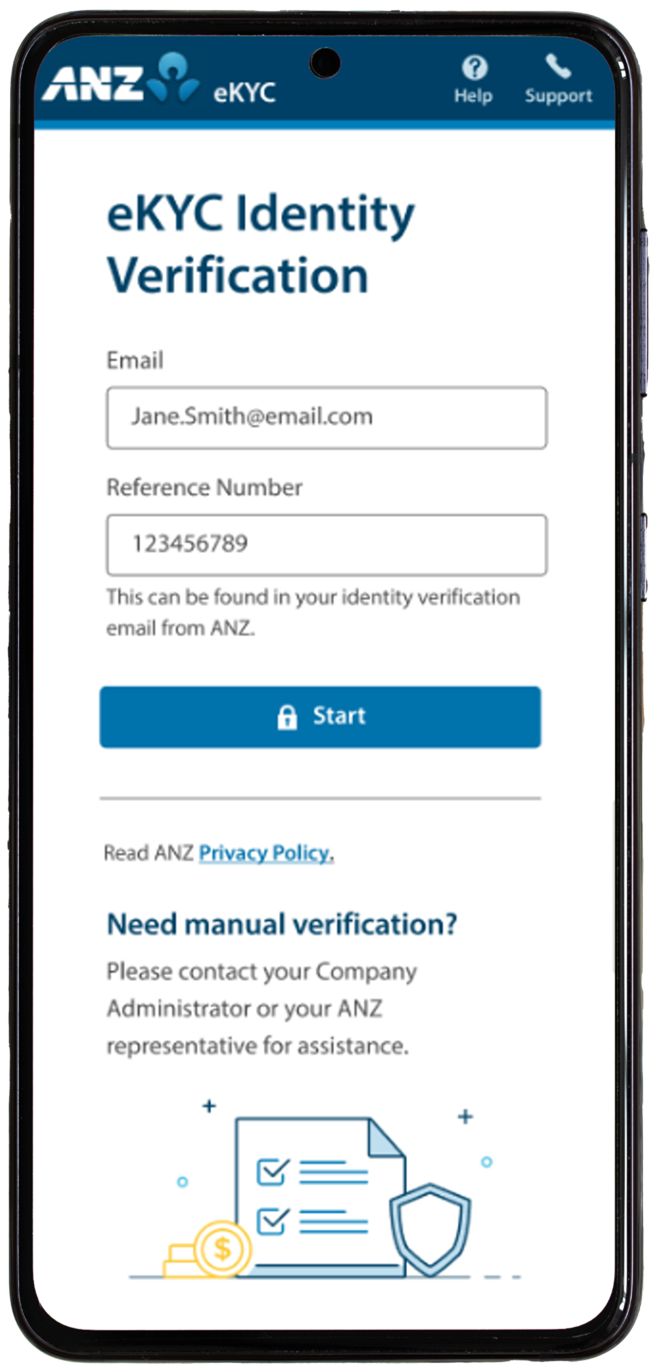
Step 2: Enter your email address and unique Reference Number and tap Start.
Your email address will be the same one you registered with ANZ, and the Reference Number will be in the Identity Verification email from ANZ.
Step 3: Review and accept ANZ’s Terms & Conditions and tap Agree.
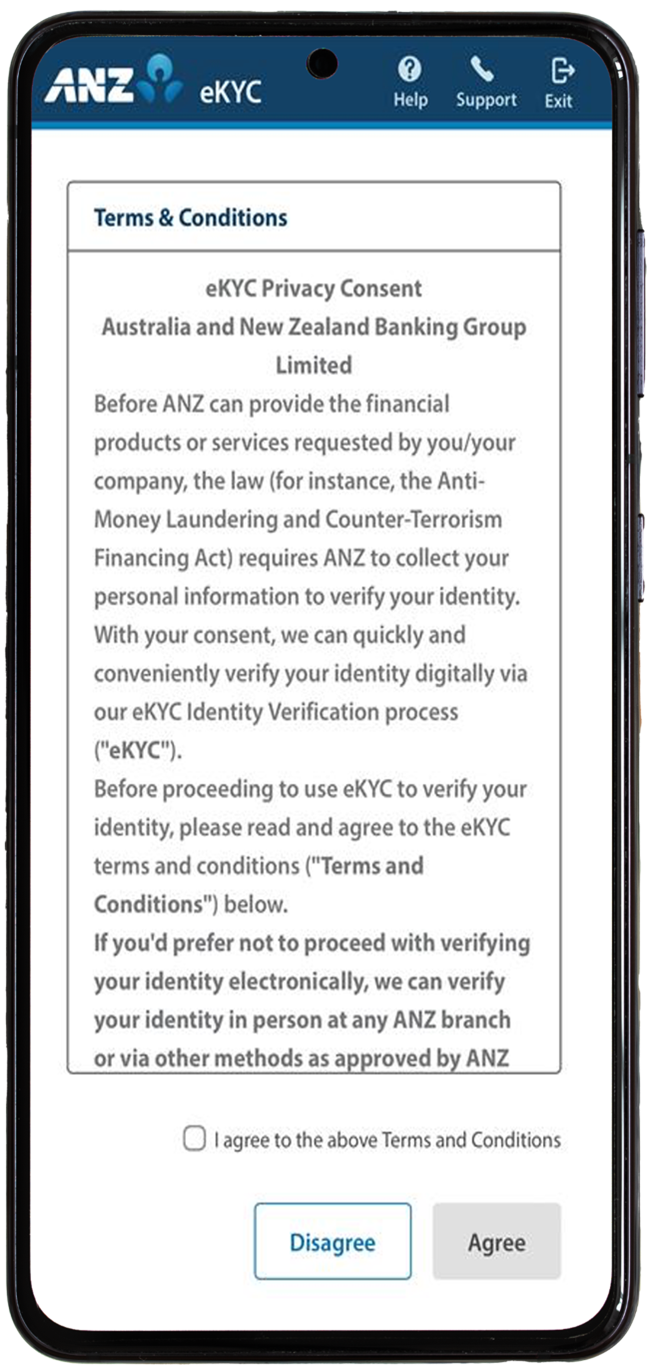
If you tap Disagree, you will not be able to proceed with eKYC and the process will end. You will need to contact ANZ to progress with your identity verification.
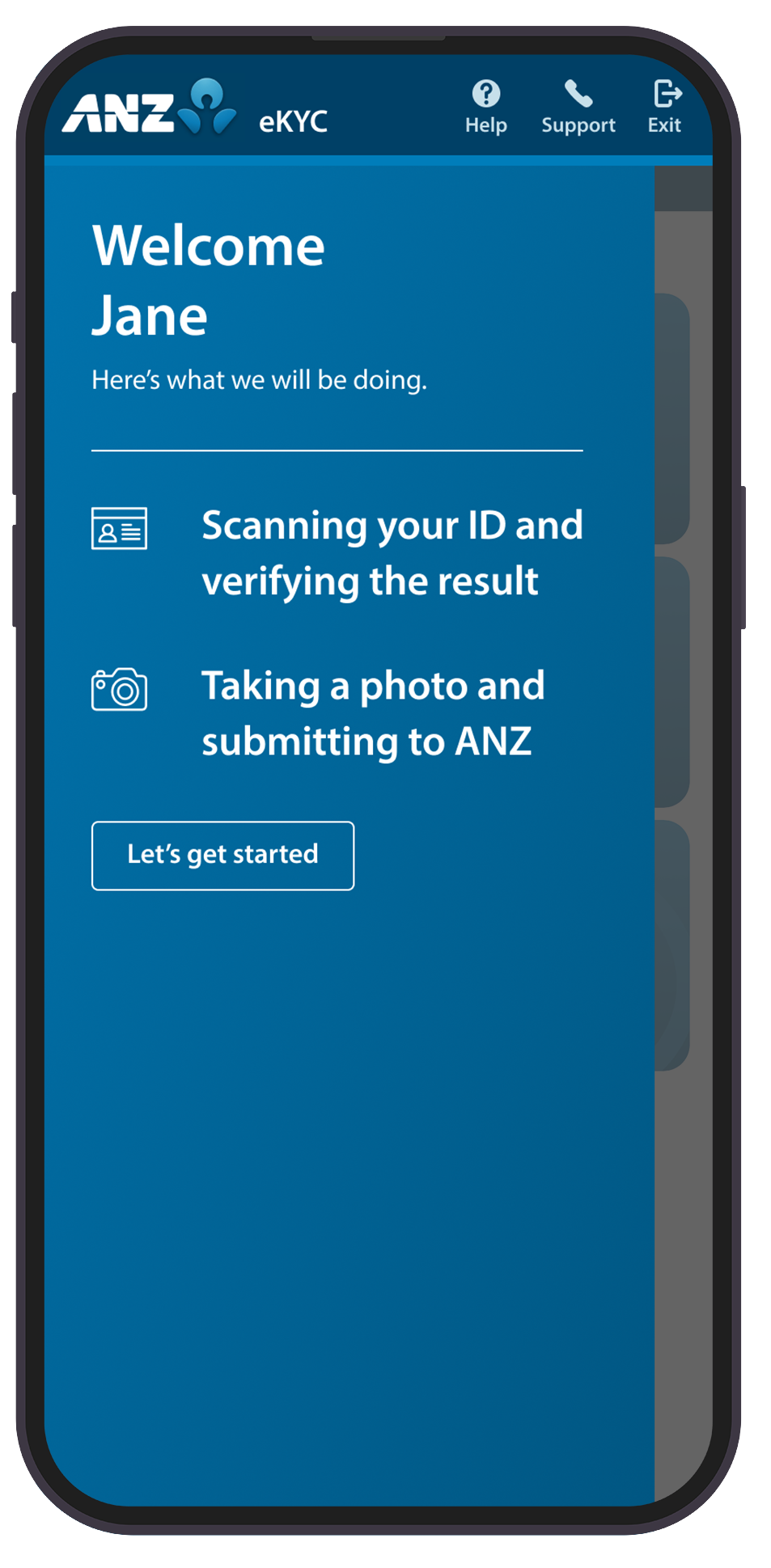
Step 4: Tap Let’s get started.
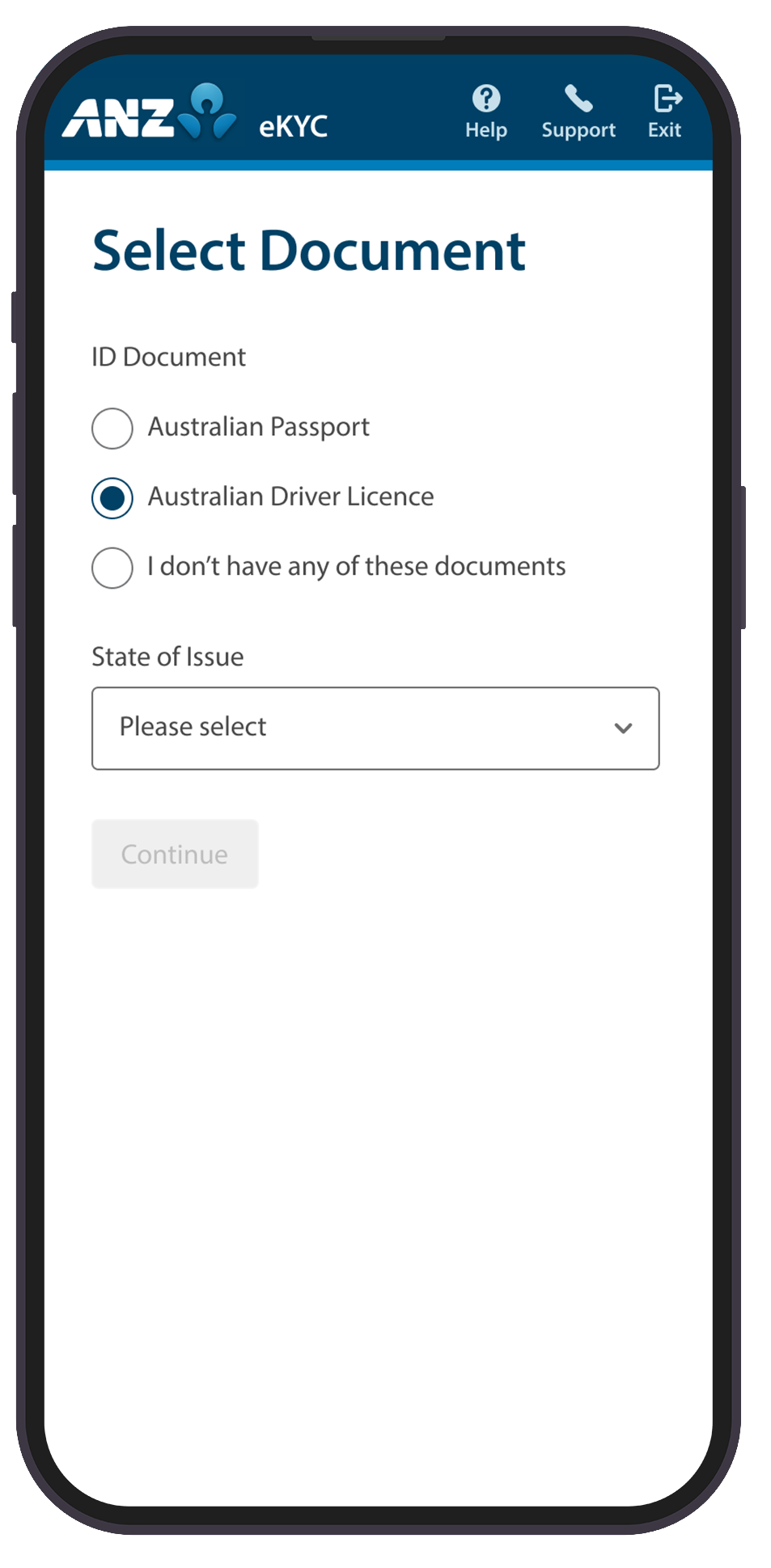
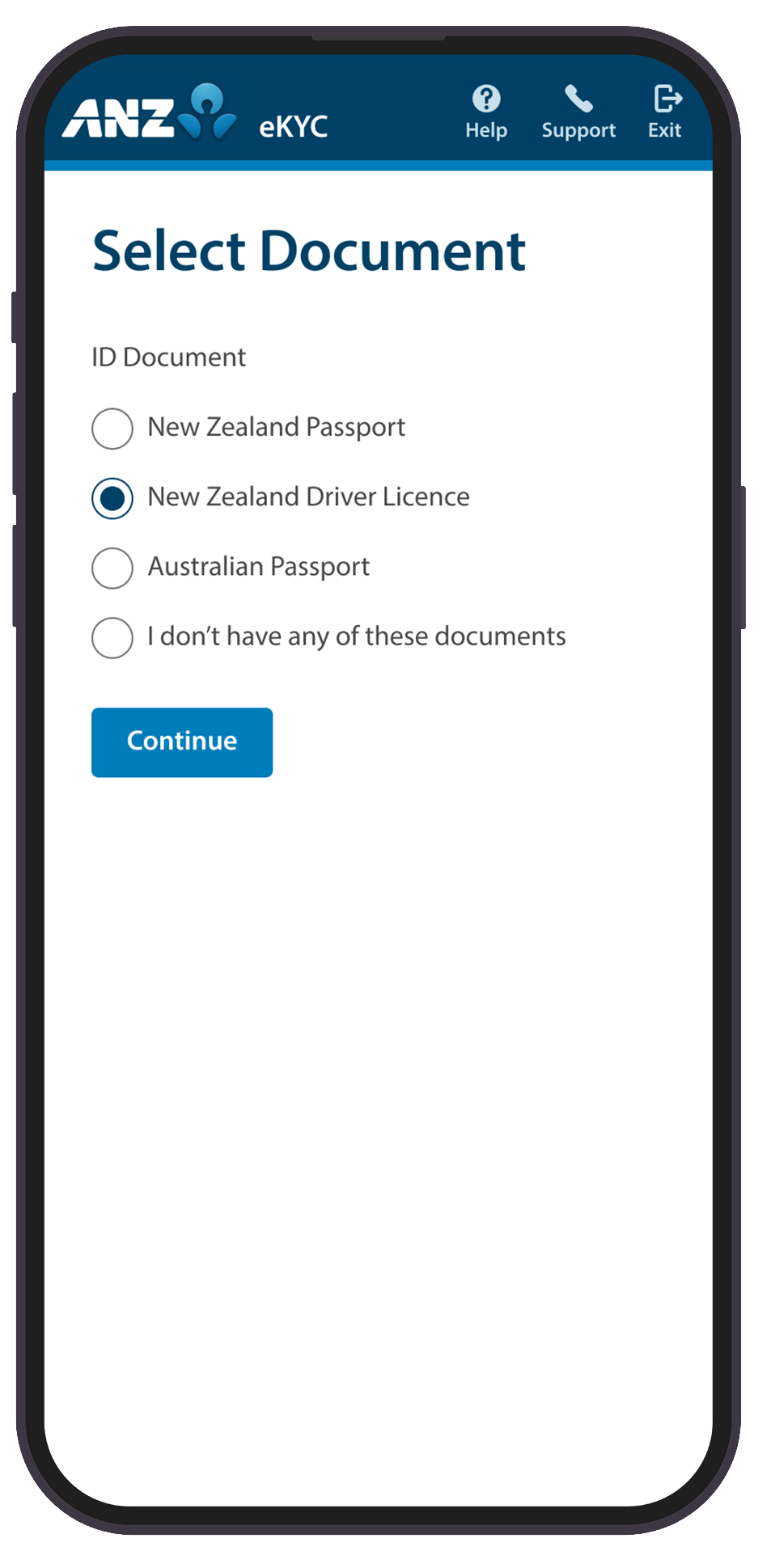
Step 5: Select a Document option:
- AU:
- Australian Passport; or
- Full Australian Driver’s Licence - (Not currently accepted for NZ verification)
- NZ:
- New Zealand Passport; or
- New Zealand Driver’s Licence; or
- Australian Passport
Tap Continue.
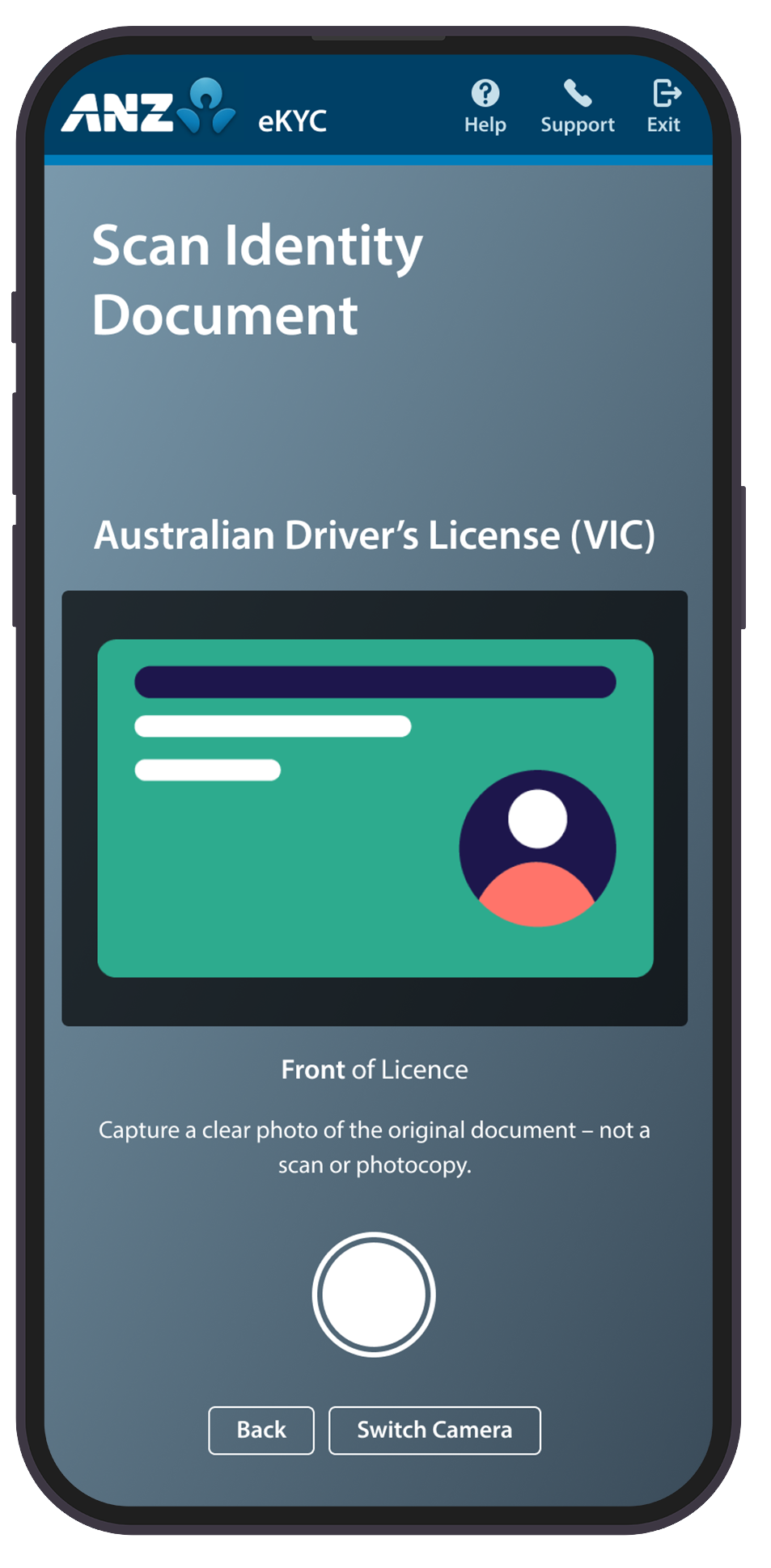
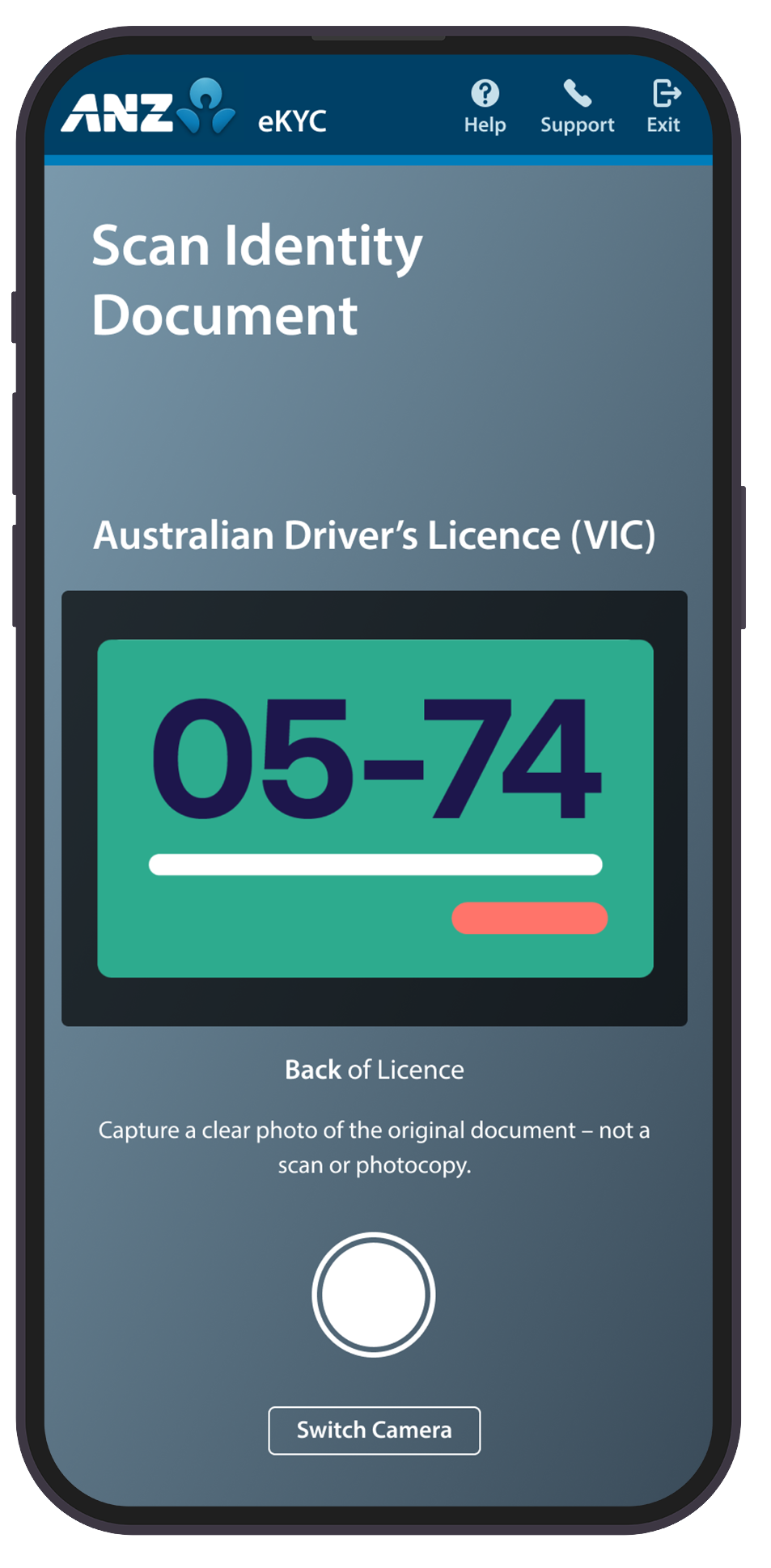
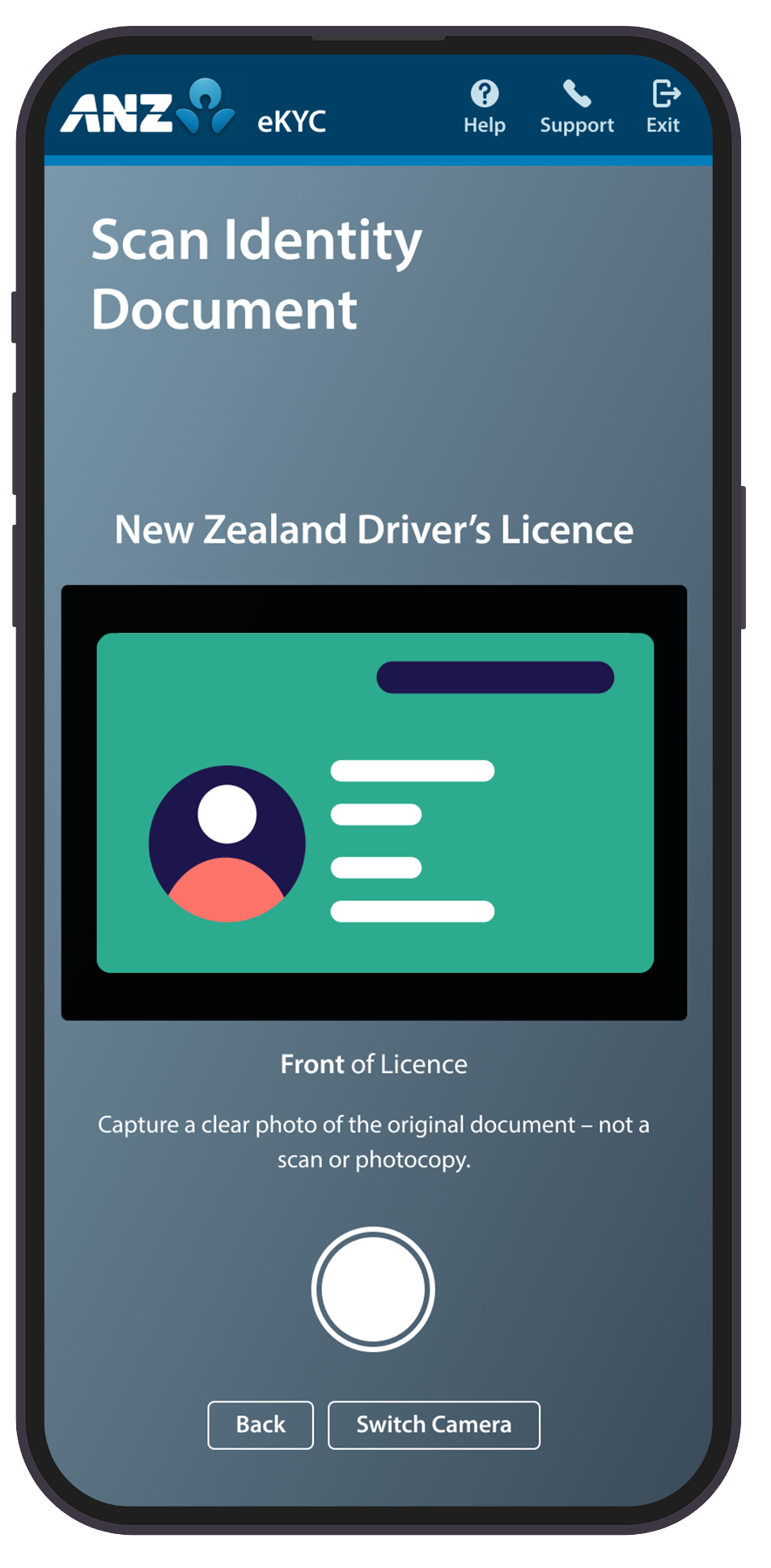
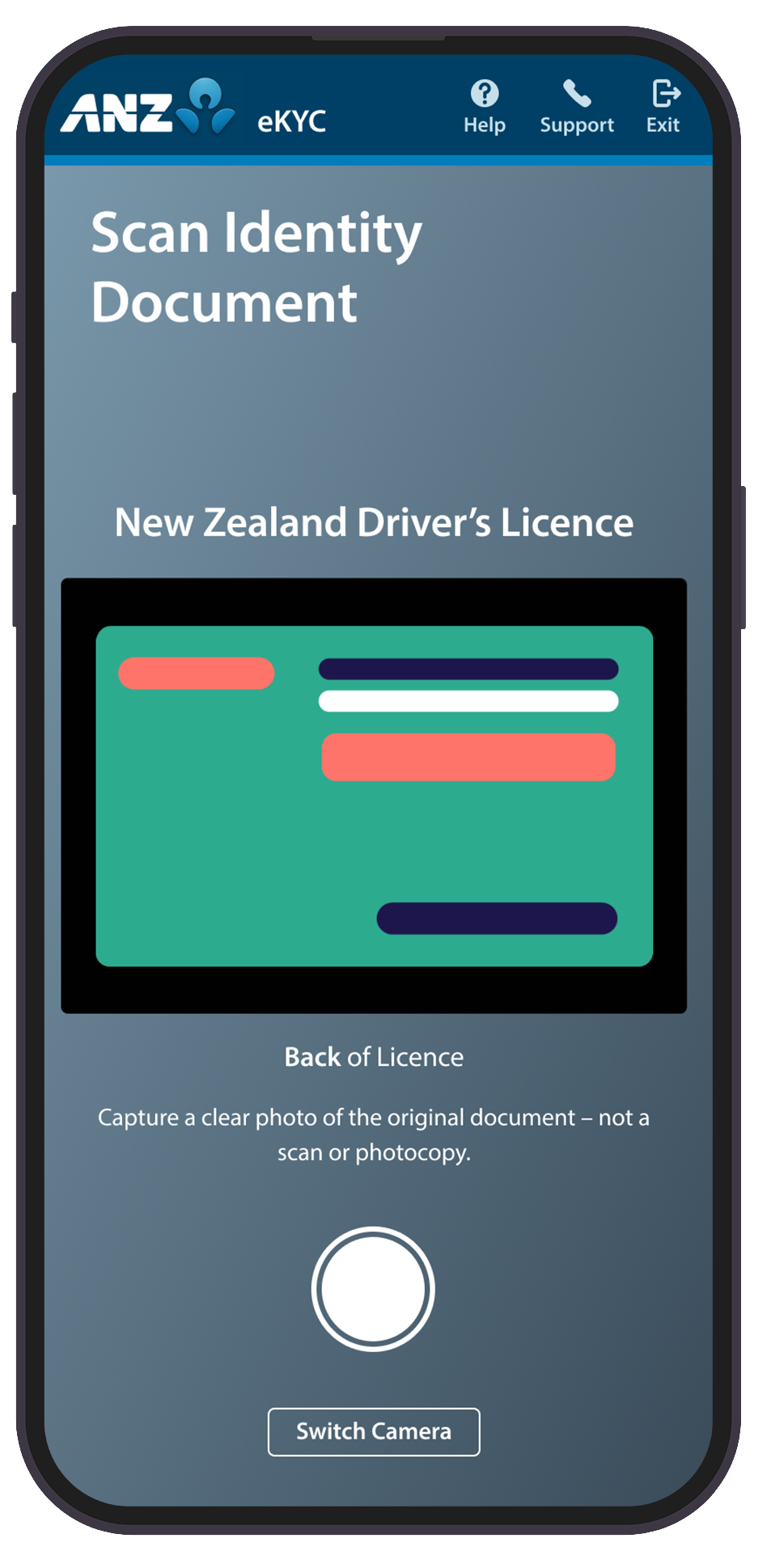
Step 6: Scan your hard copy Identity Document and tap the shutter button, then tap Submit.
If there is an issue with the scan, tap Retake and try again. For best results, ANZ recommends laying your document on a clean and flat surface.
Step 7: Verify information and ensure any inaccurate details are correctly edited, then tick the checkbox and tap Confirm.
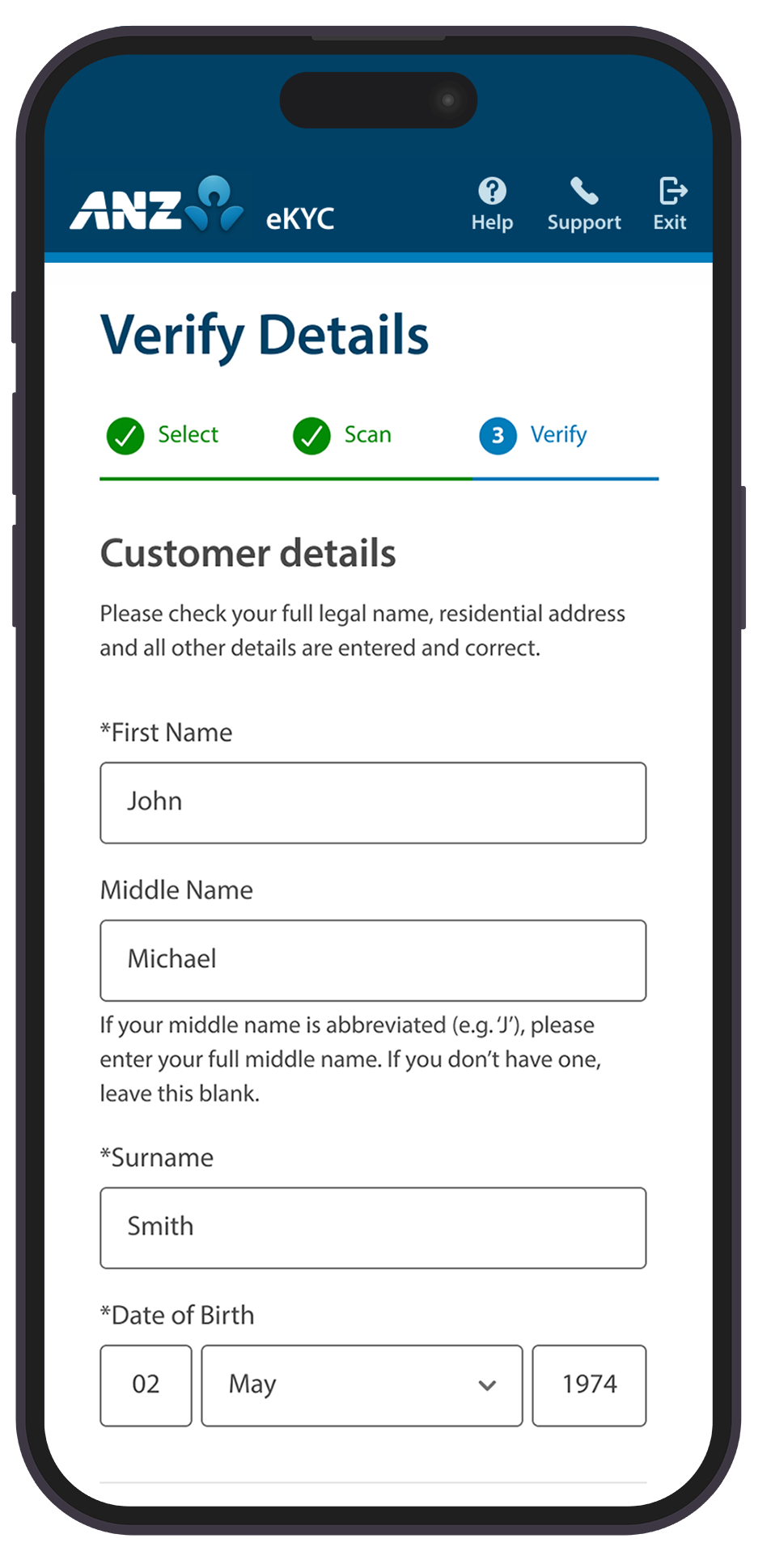
Step 8: Tap Ok to take a photo of yourself.
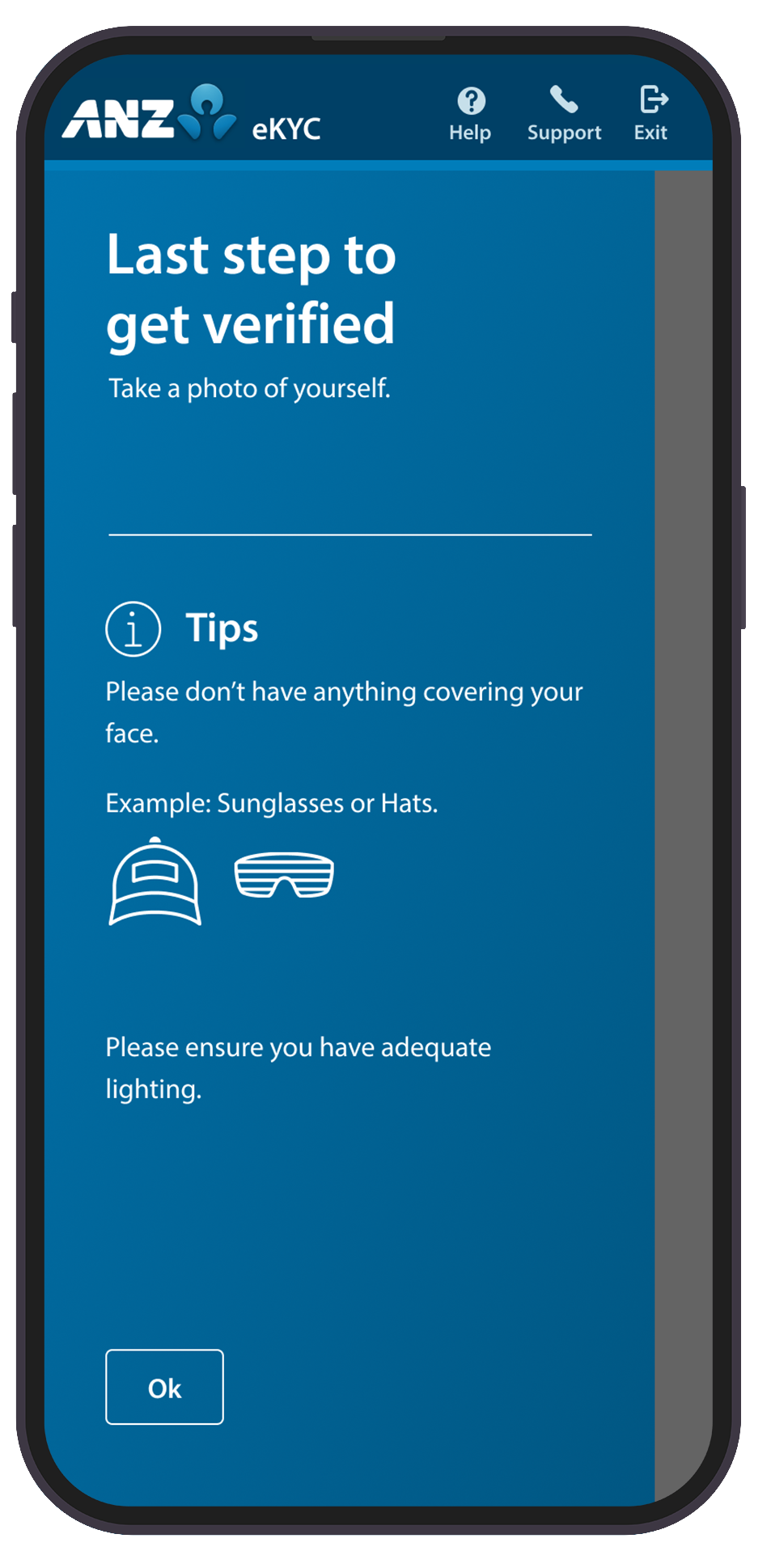
Tap the shutter button when ready.
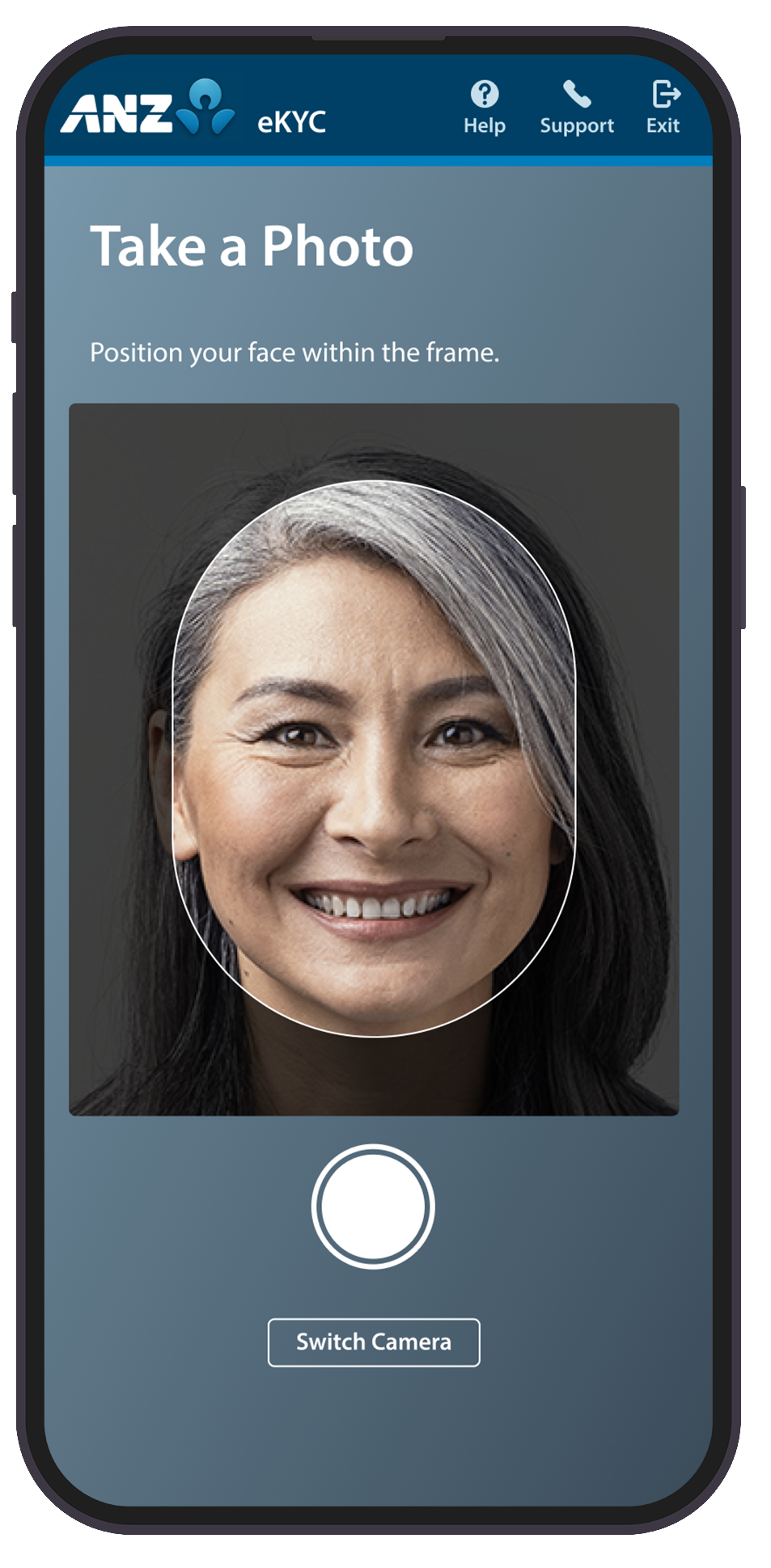
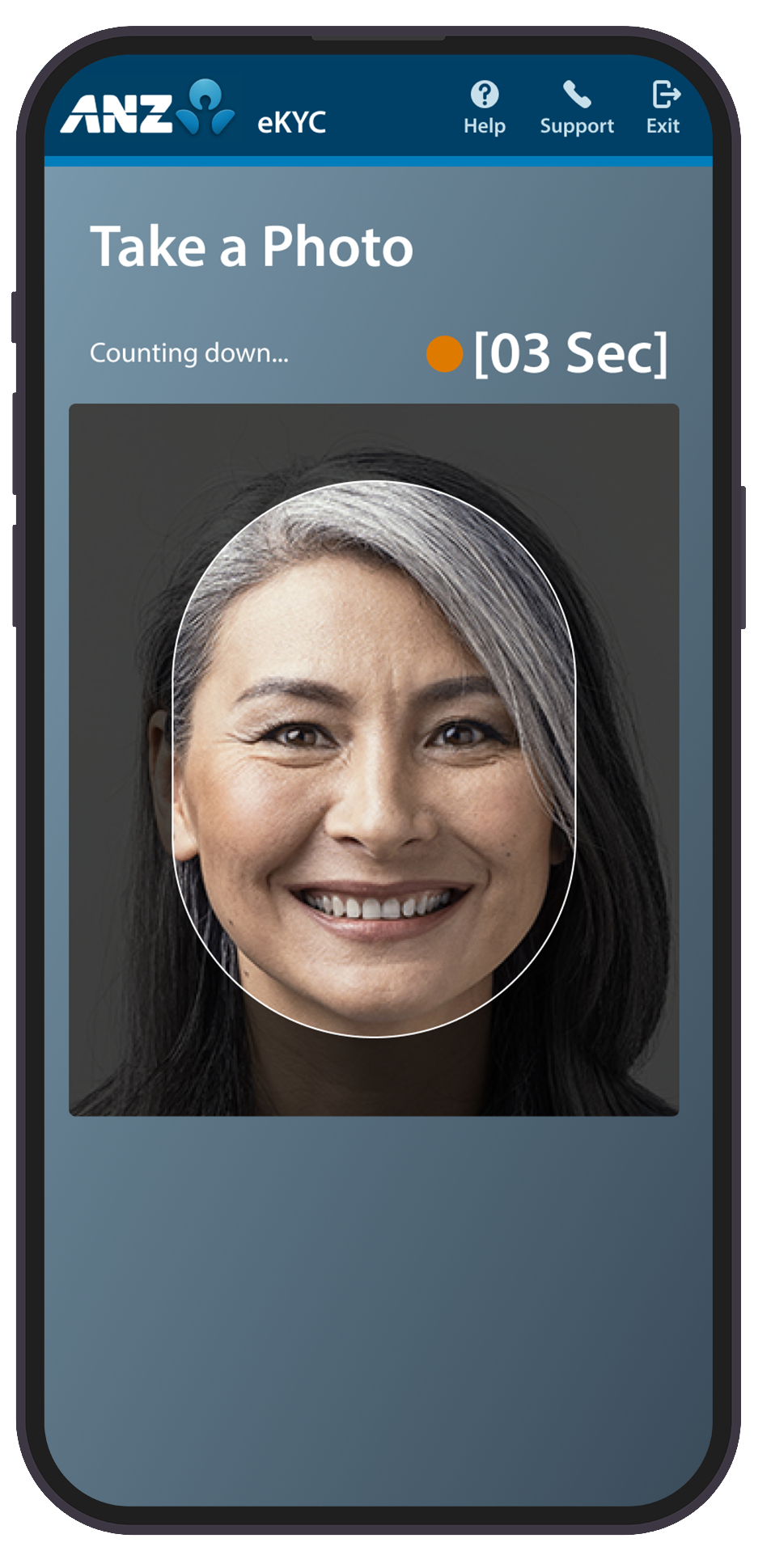
Step 9: If you would like to retake the photo, tap Retake otherwise tap Submit.
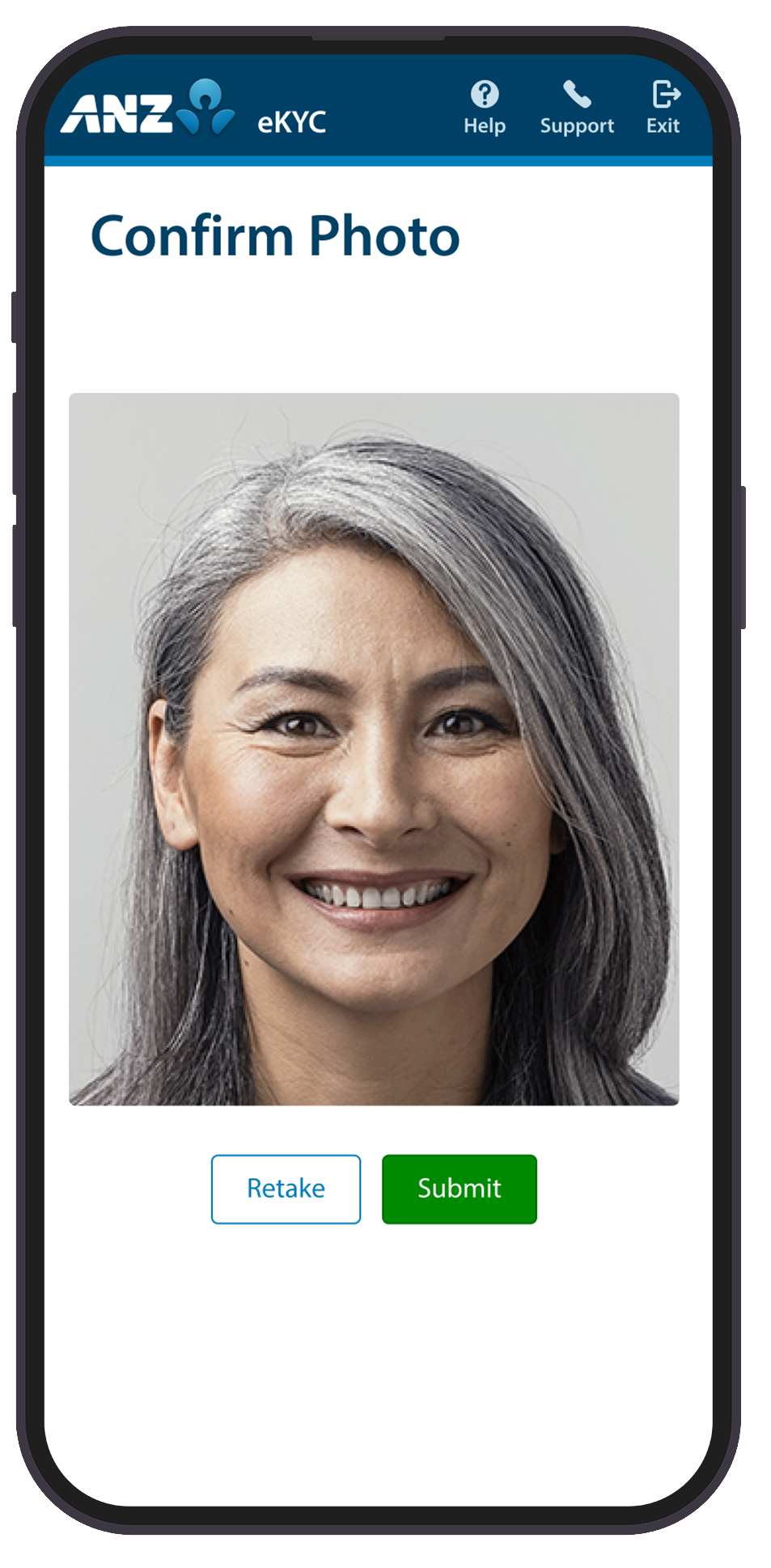
Result: Your eKYC application has been submitted. ANZ will communicate further information regarding the outcome via email.
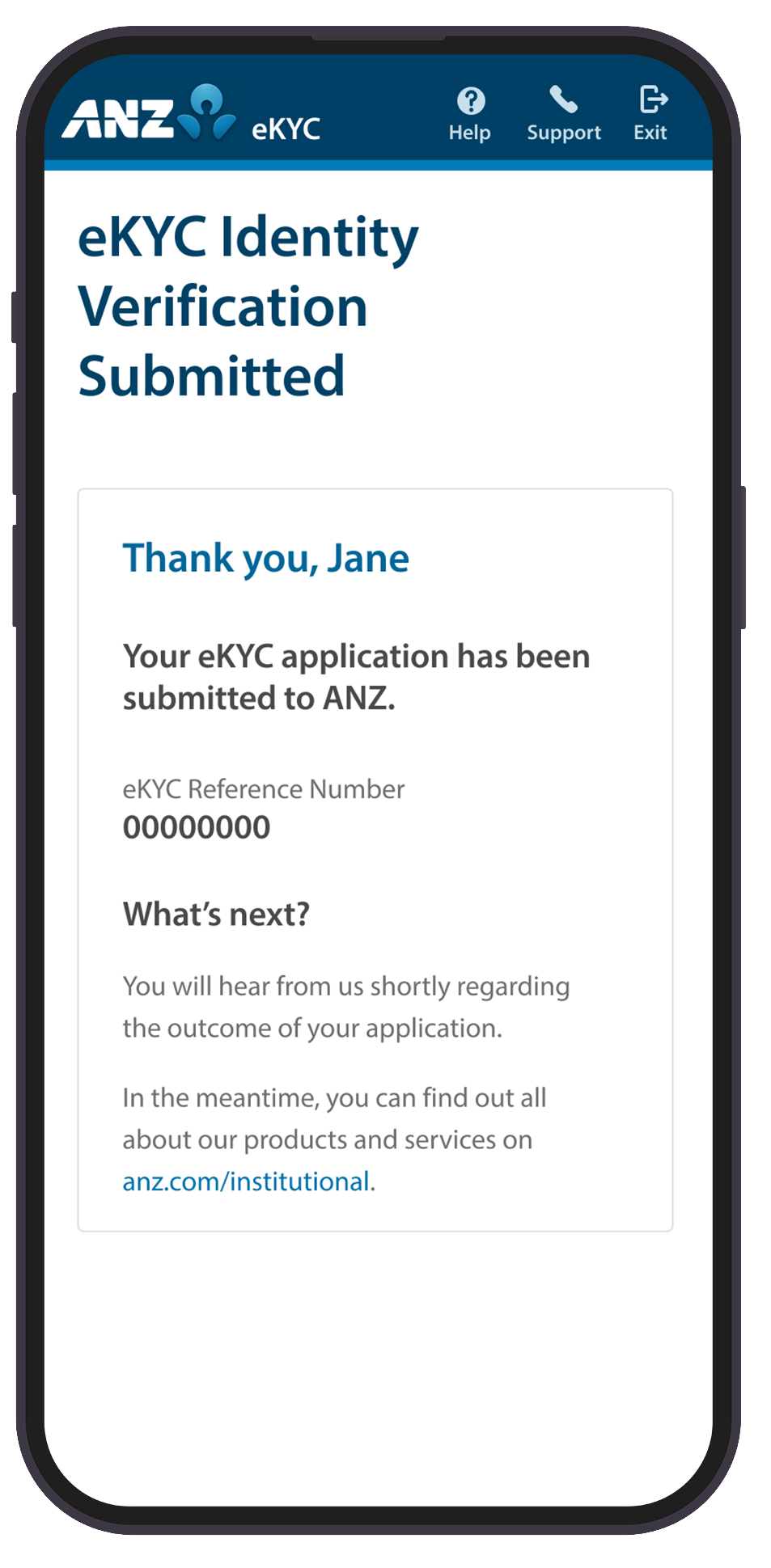
Step 1: Go to the eKYC Identification Verification page and click Verify Now.
Step 2: Enter your email address and unique Reference Number and tap Start.
Your email address will be the same one you registered with ANZ, and the Reference Number will be in the Identity Verification email from ANZ.
Step 3: Review and accept ANZ’s Terms & Conditions and tap Agree.
If you tap Disagree, you will not be able to proceed with eKYC and the process will end. You will need to contact ANZ to progress with your identity verification.
Step 4: Tap Let’s get started.
Step 5: Select ePassport and Country of Issue, then tap Continue.

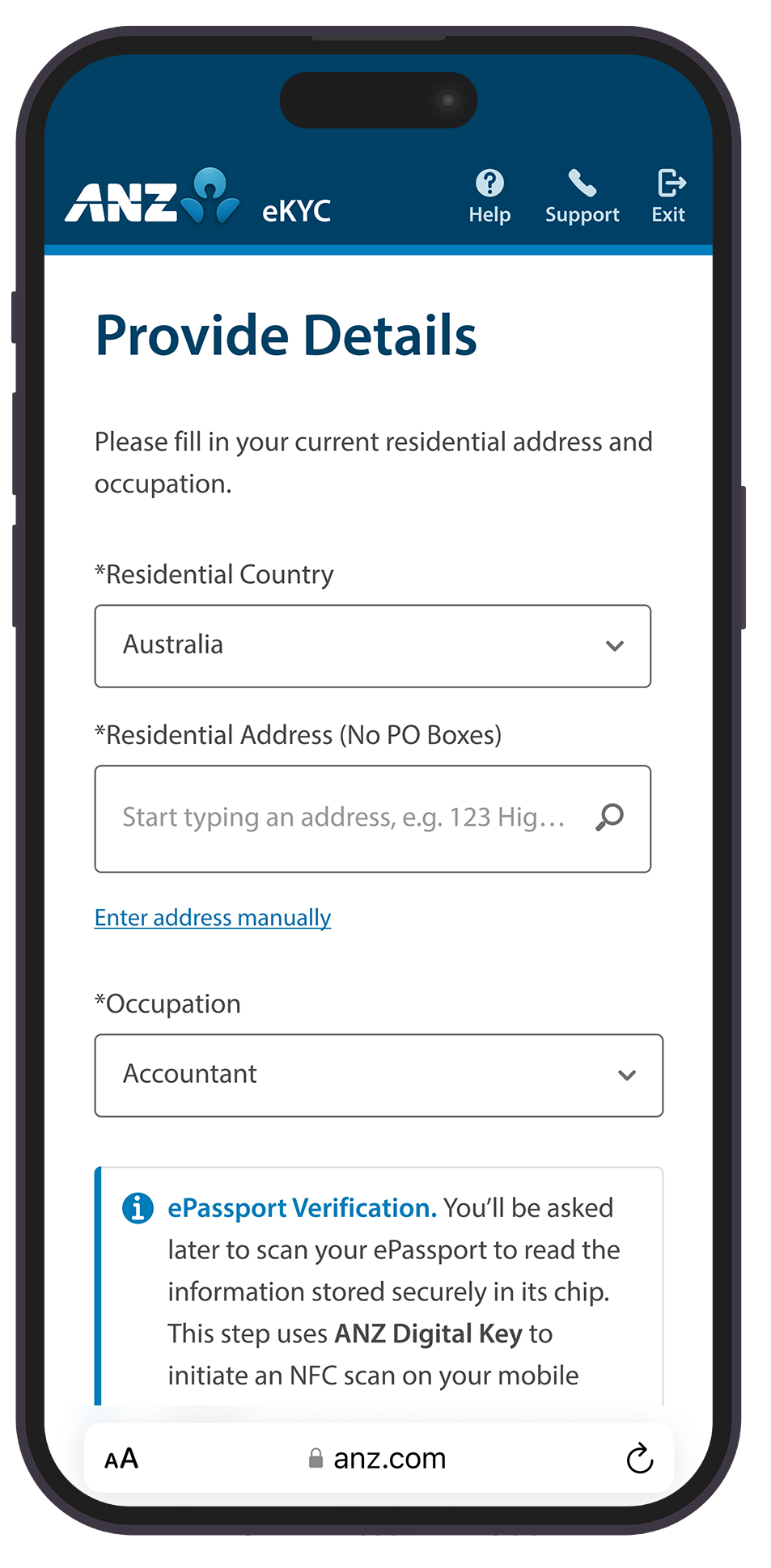
Step 6: Provide your residential and occupation details.
Agree to the terms and conditions and tap Confirm.
Step 7: Tap Ok to take a photo of yourself.
Tap the shutter button when ready.
Step 8: If you would like to retake the photo, tap Retake otherwise tap Submit.
Step 9: Tap Ok, let’s go and tap Open to launch the ANZ Digital Key app.
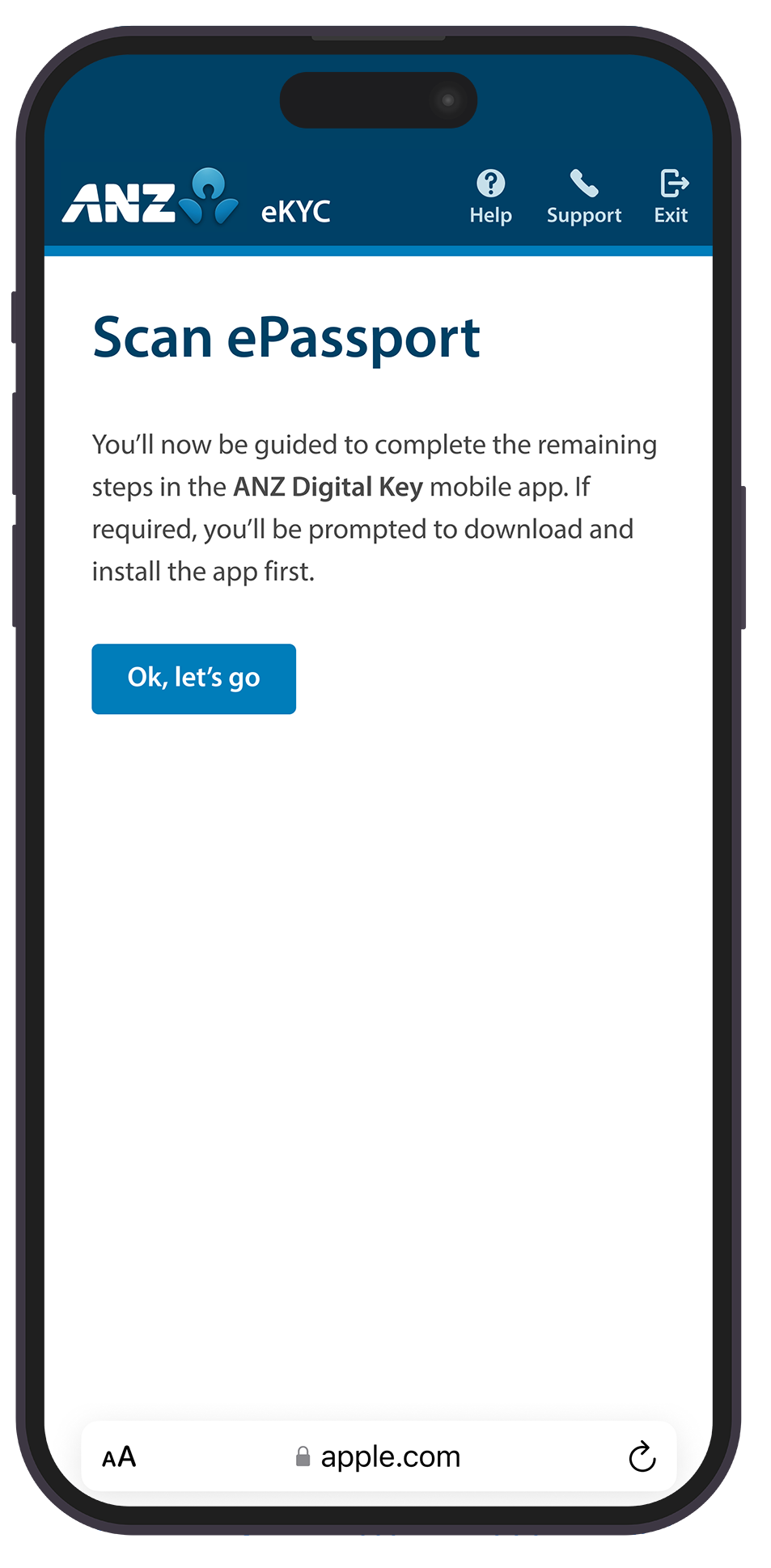
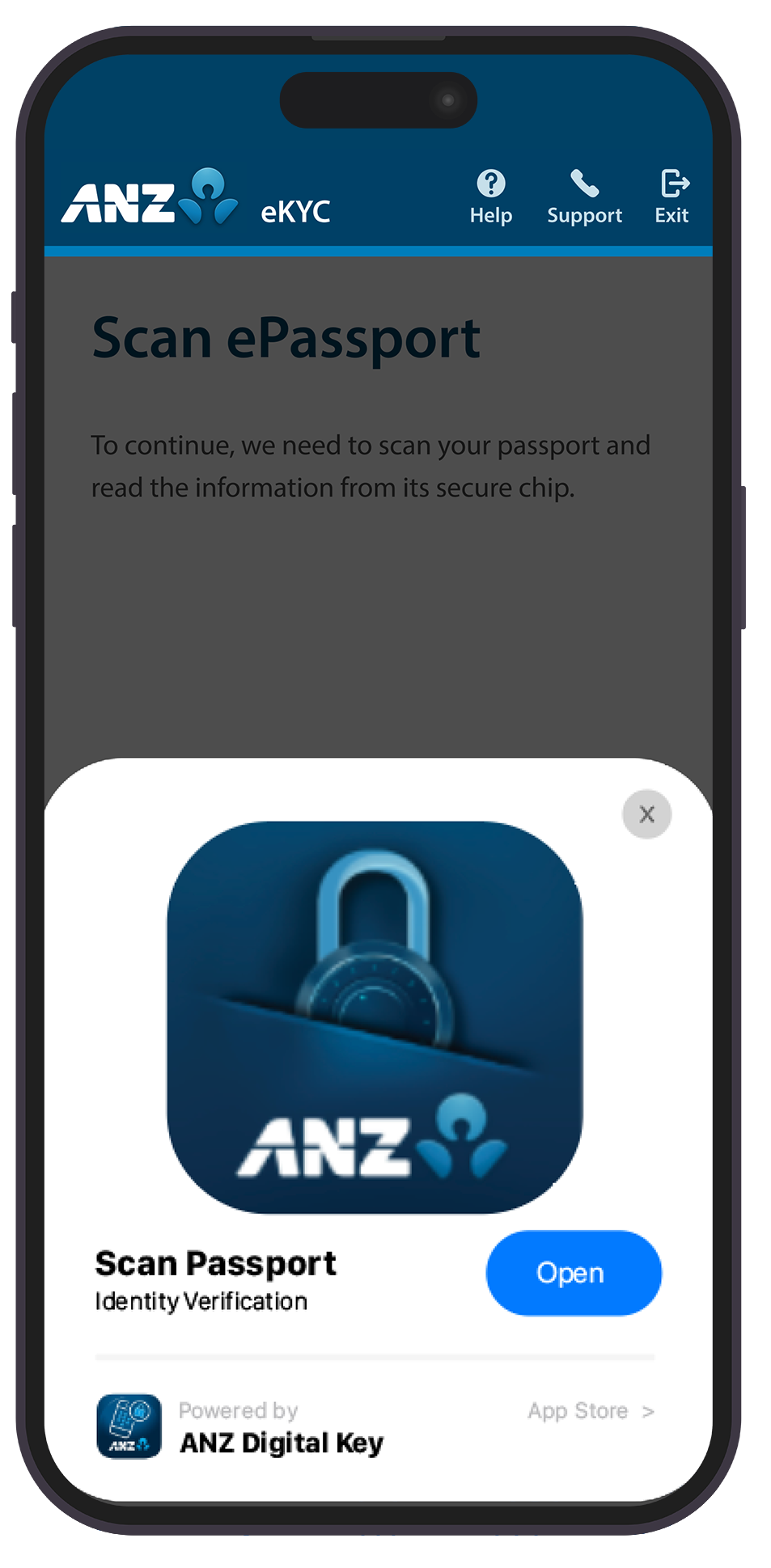
Step 10: Tap Continue to proceed to scan your passport barcode.
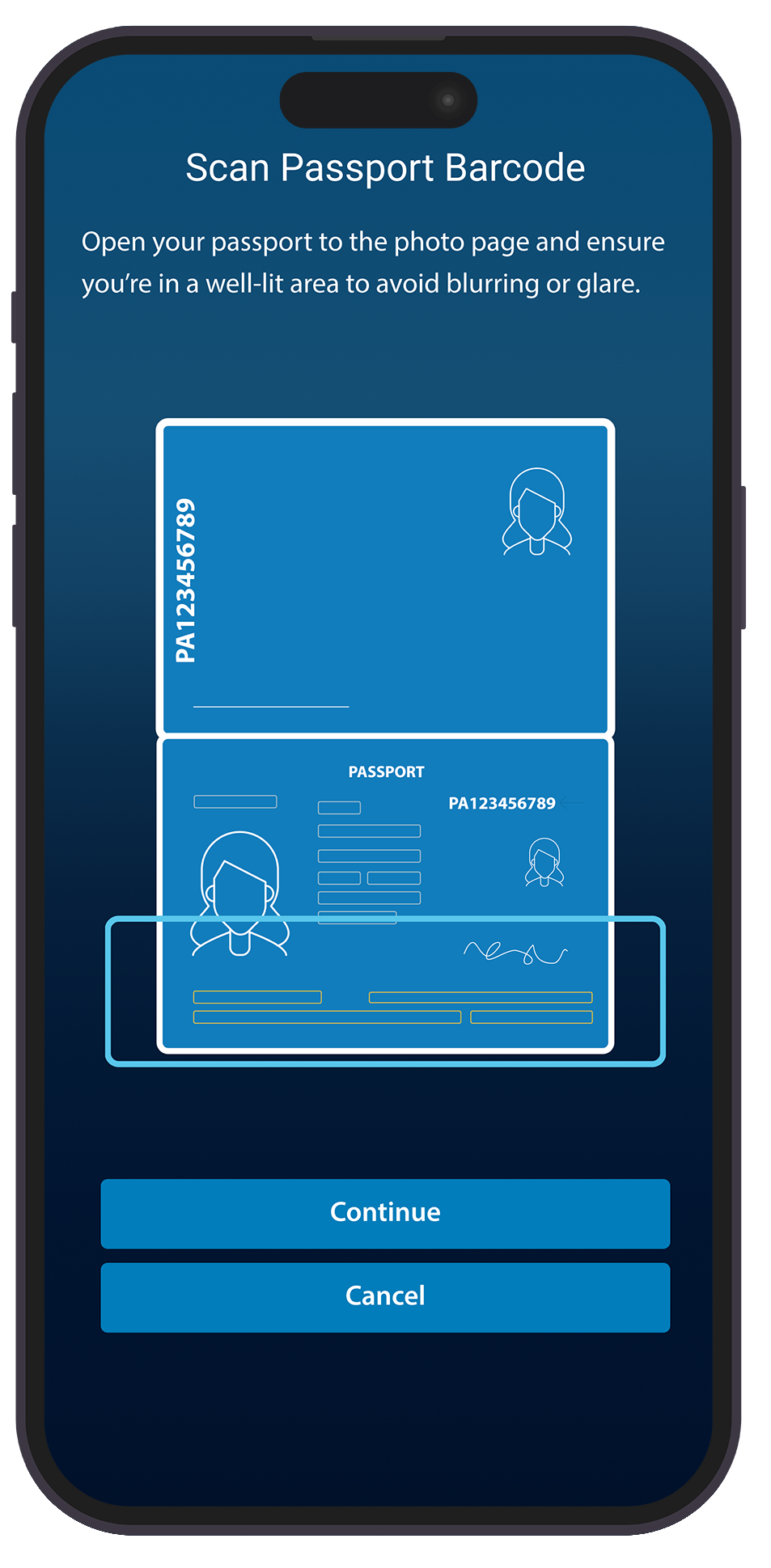
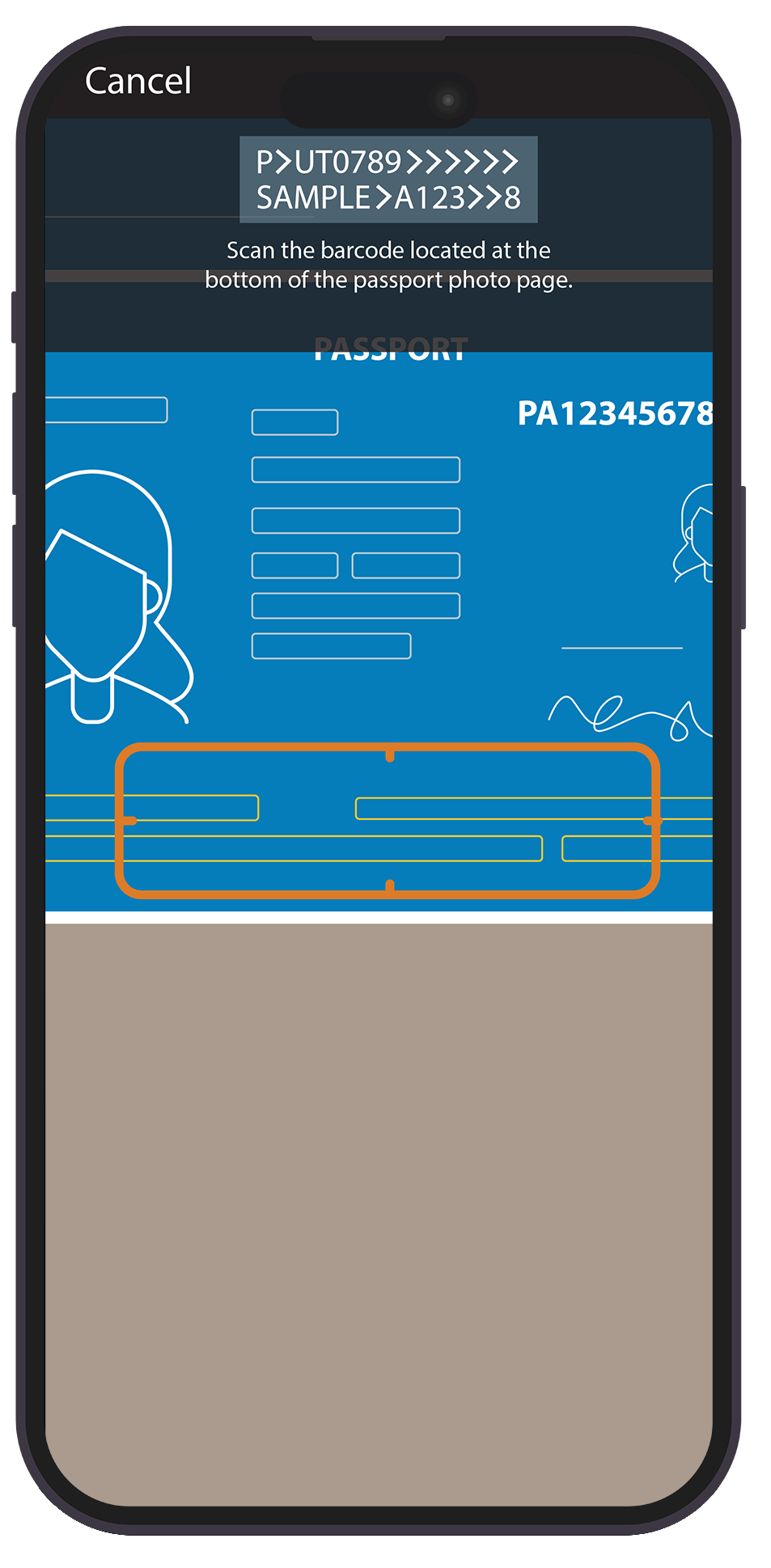
Scan the passport barcode located at the bottom of your passport photo page.
Step 11: Place the top half of your phone over the centre of your passport and hold until the scan is complete.
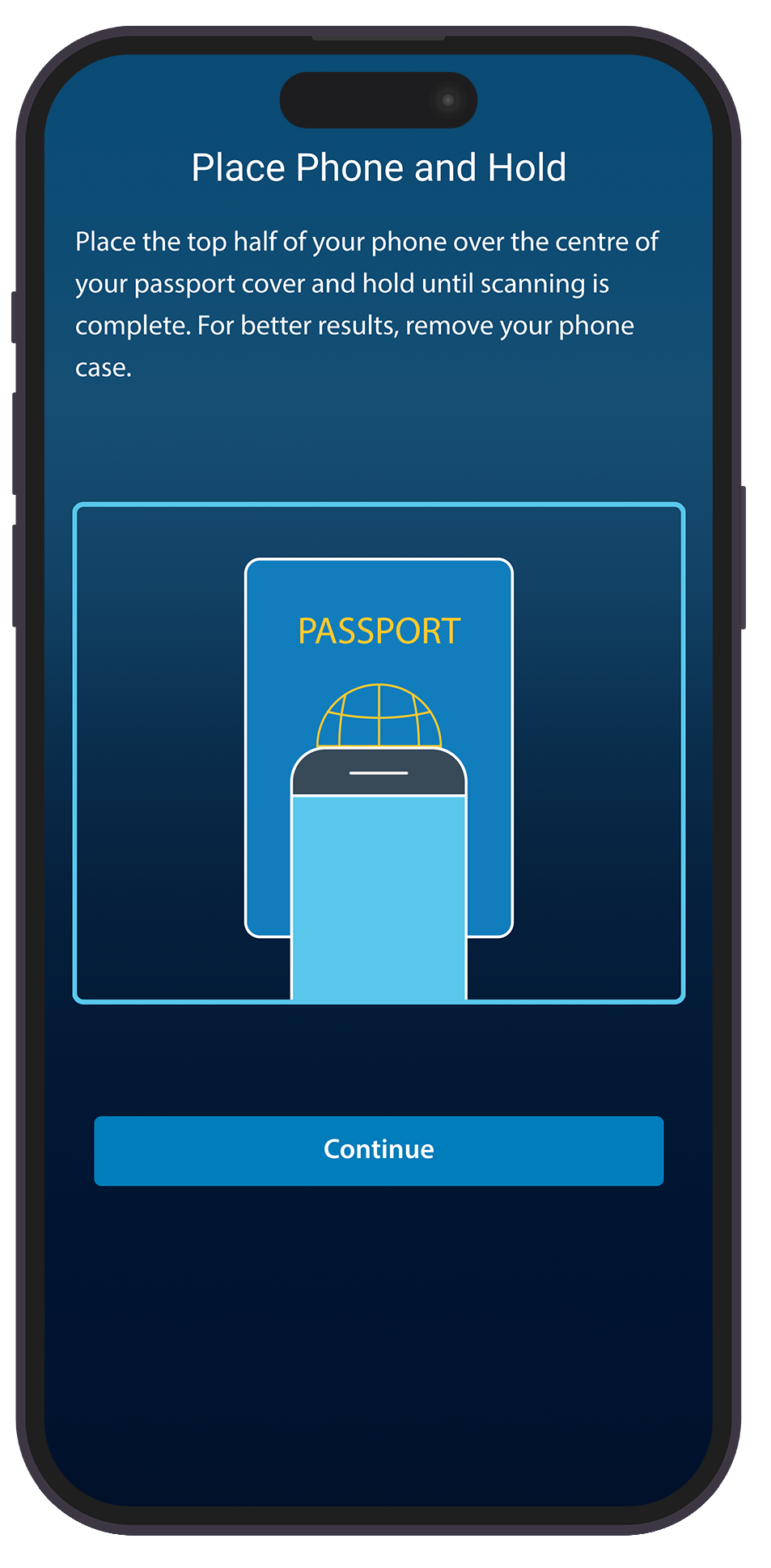
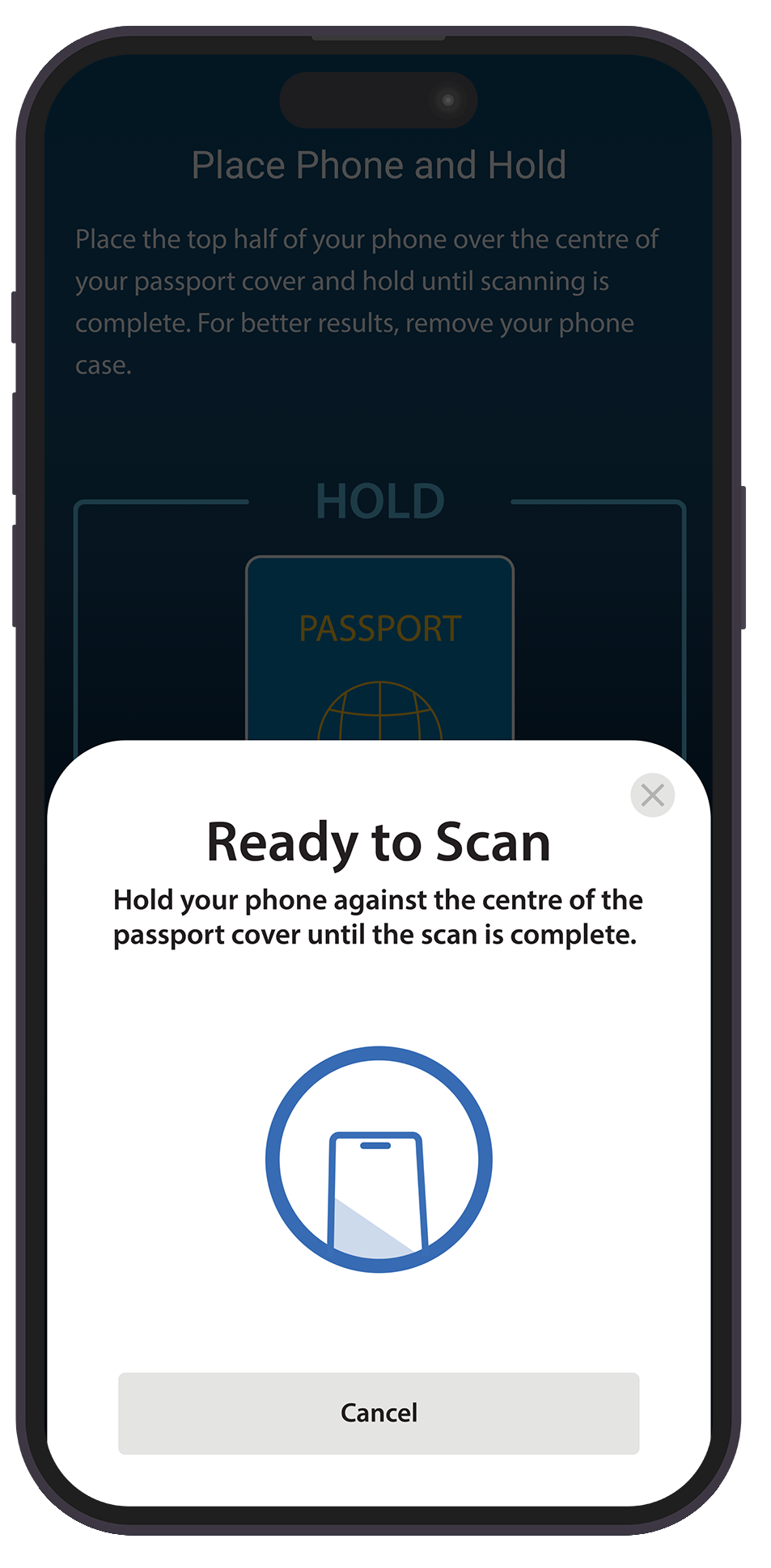
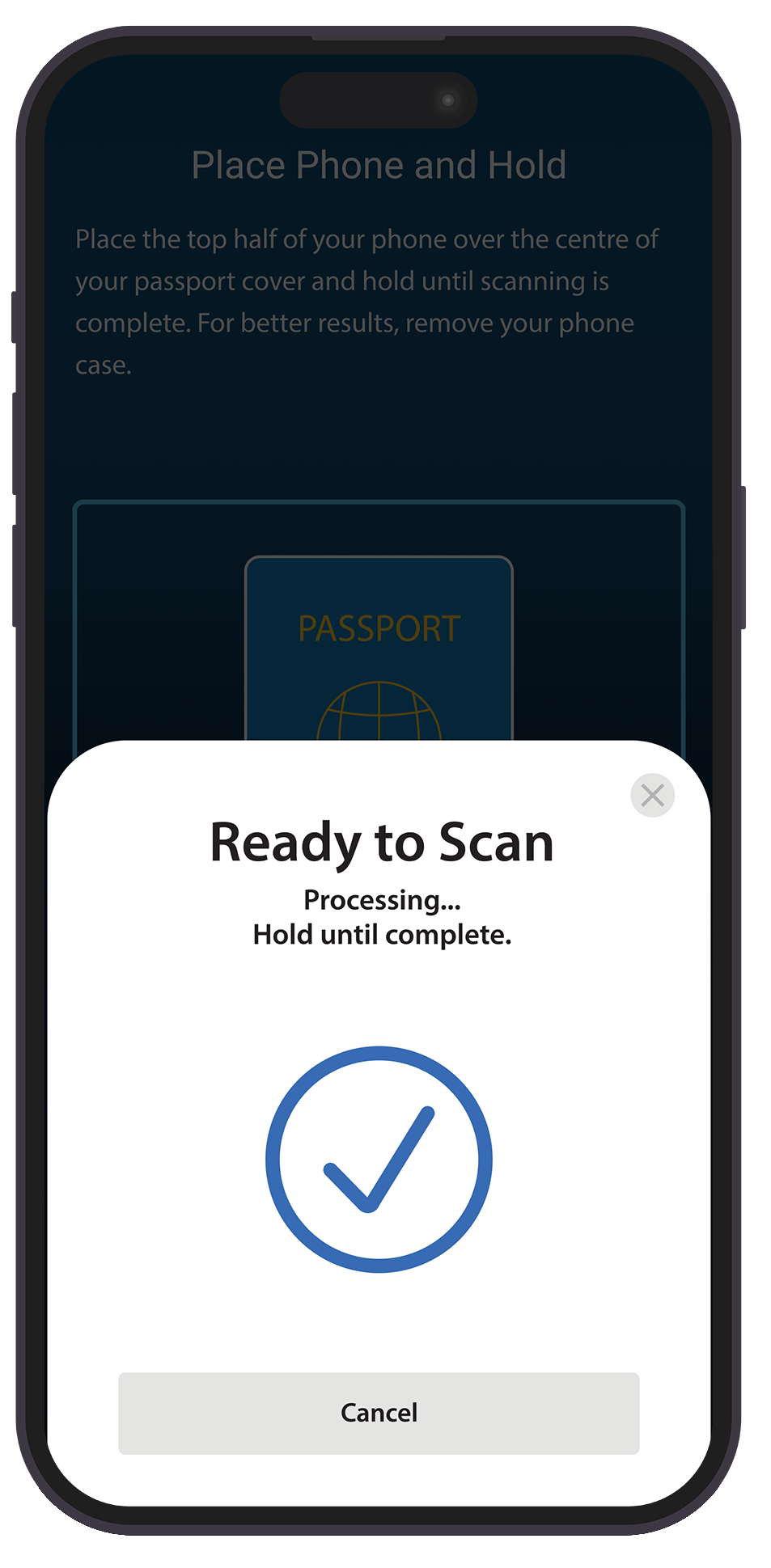
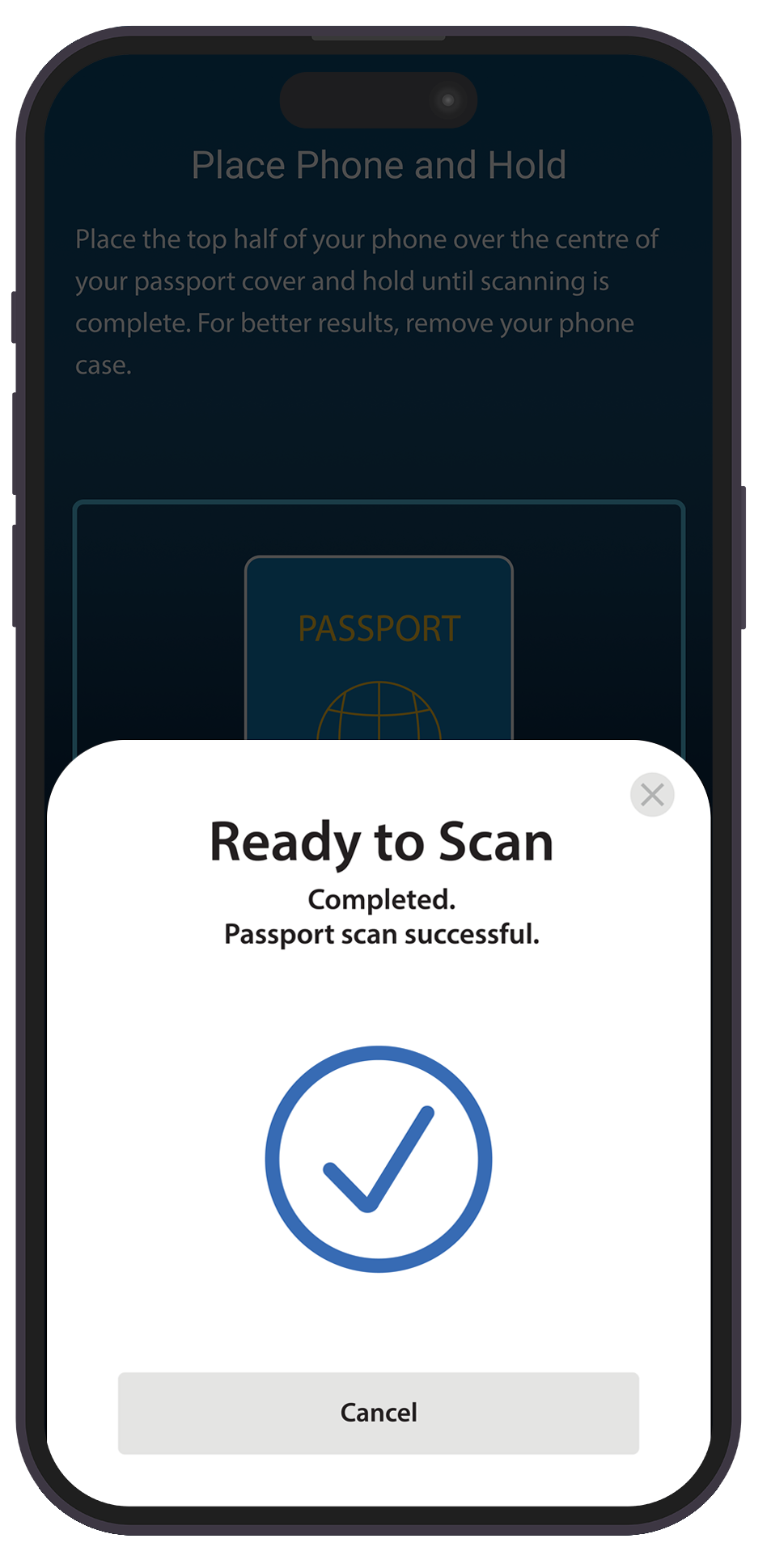
For better results, remove your phone case or cover before scanning.
Step 12: Verify your details and tap Continue to submit your application.
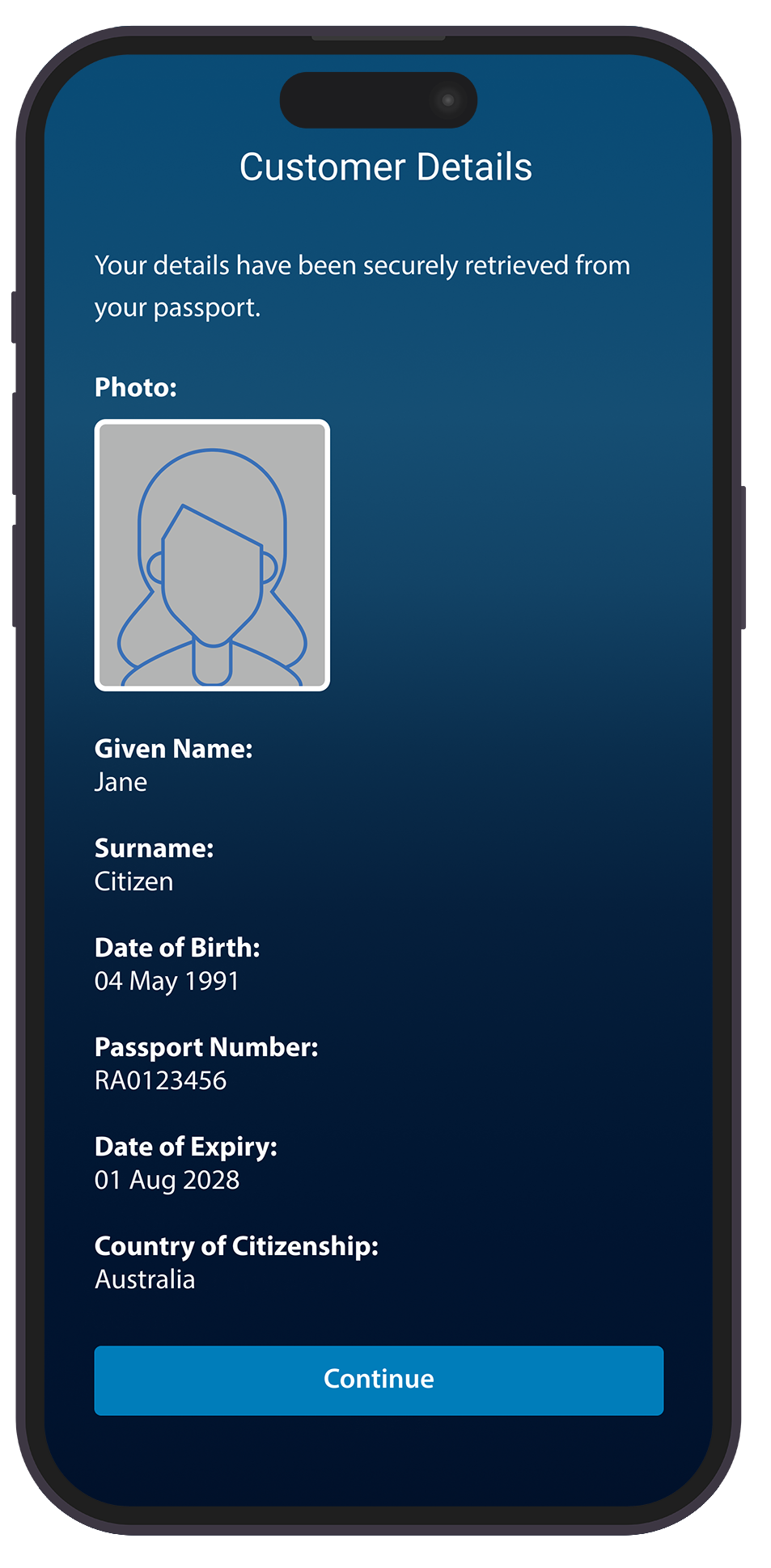
Result: Your eKYC application has been submitted. ANZ will communicate the outcome of your application via email.
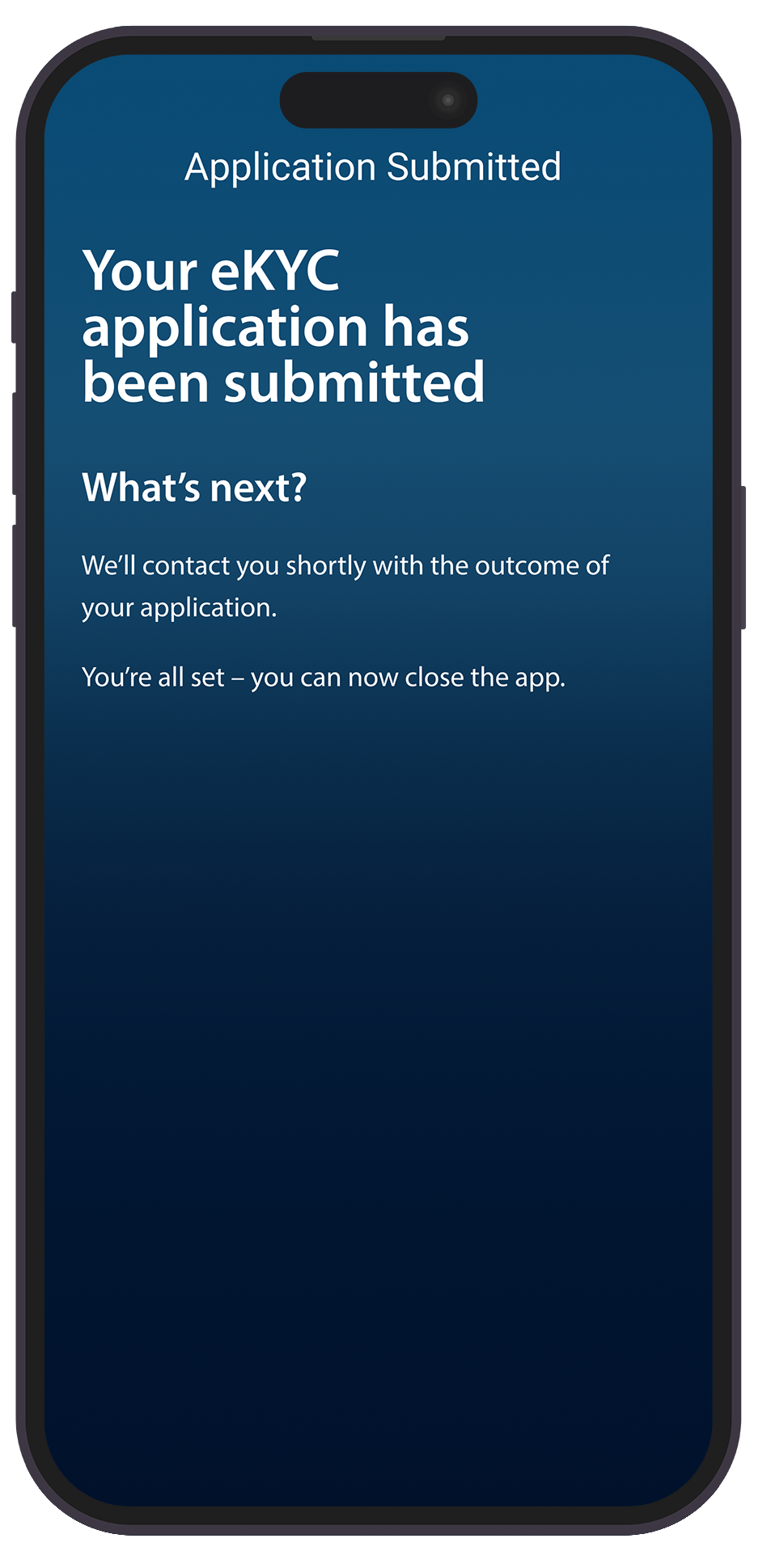
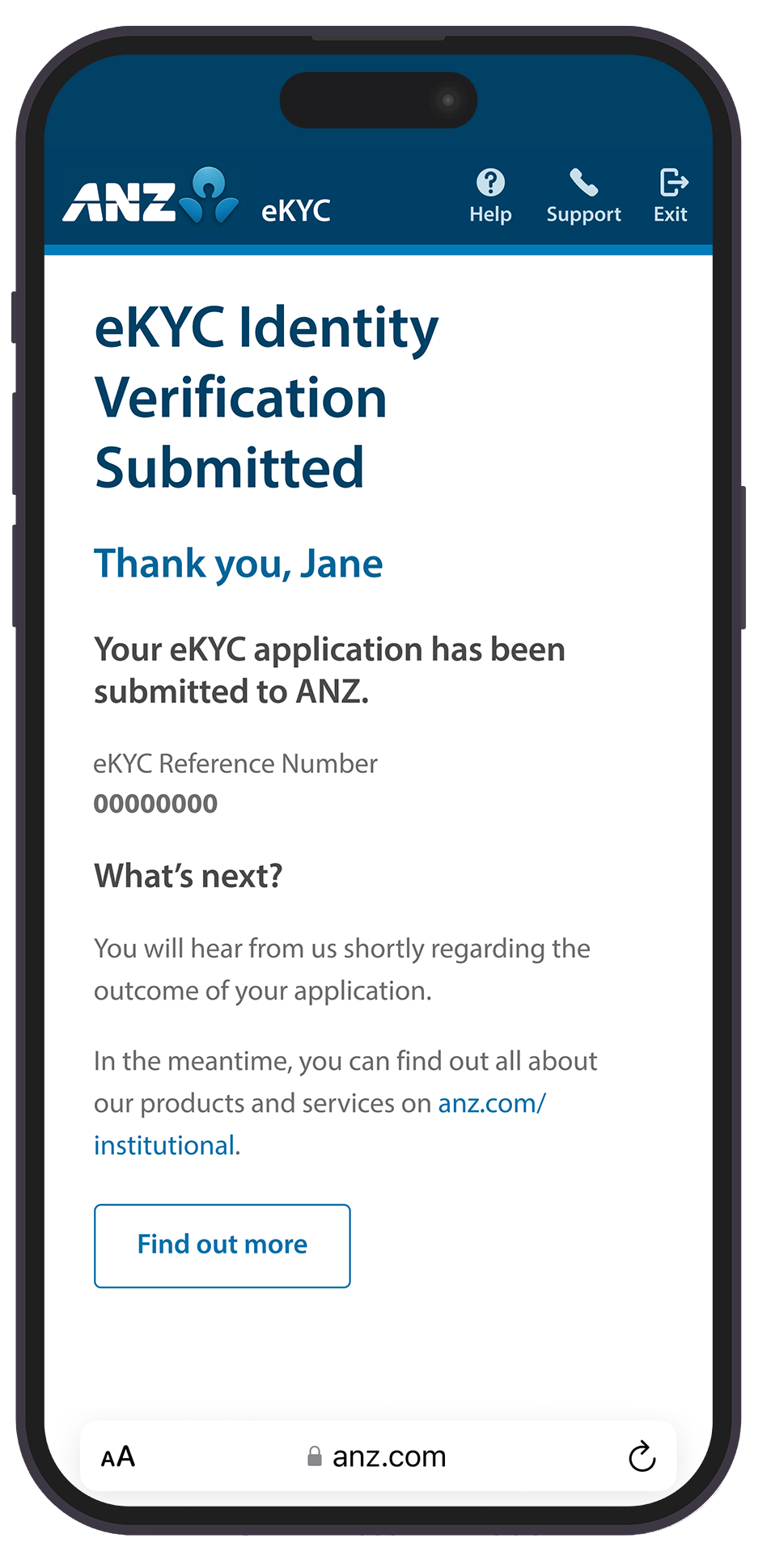
After you scan your ePassport, ANZ Digital Key should open automatically so you can continue your identity verification.
If the app does not open, follow the troubleshooting steps below for your mobile device and browser.
Before troubleshooting, make sure:
- ANZ Digital Key is installed on your device
- You're using the same device that has ANZ Digital Key installed
- NFC is enabled
- You've closed and reopened both your browser and the ANZ Digital Key app
Redirected to the App Store or Google Play Store?
This usually means:
- ANZ Digital Key is not installed
- Your device settings are preventing the app from opening
To resolve this:
- Install or update the ANZ Digital Key app
- Return to your identity verification link and try again
- Follow the relevant Android or iPhone troubleshooting steps below if required
iPhone (iOS)
On iPhone, ANZ Digital Key should open automatically when you scan your ePassport.
If ANZ Digital Key is installed, no additional browser or device settings are required.
Using Safari
- Scan your ePassport
- Tap Open when prompted
- Continue your identity verification in ANZ Digital Key

Using another browser?
If you're using Chrome, Firefox or another browser on iPhone, try opening the link in Safari.
Android Devices
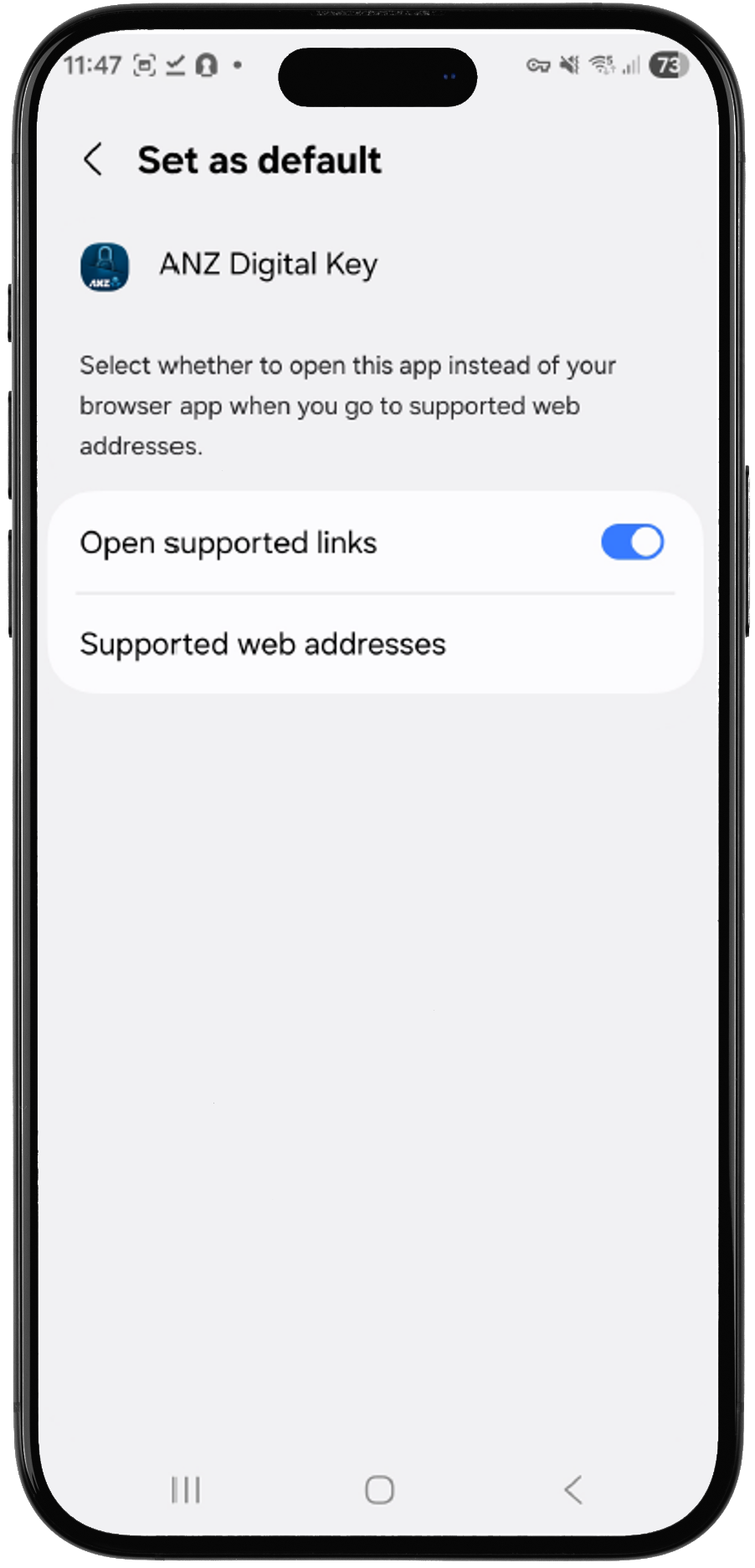
Step 1: Check ANZ Digital Key App Link Settings:
- Open Settings
- Select Apps or Applications
- Select ANZ Digital Key
- Tap Set as Default (may be labelled Open by default or Opening links)
- Make sure Open supported links is turned on.
Check browser settings:
Browser |
What to do |
Google Chrome |
No additional settings required |
Microsoft Edge |
Select Open external app if prompted |
Firefox |
Select Open if prompted |
Other browsers |
Try Google Chrome, Microsoft Edge or Firefox |
Still need help?
Contact ANZ Support for assistance.
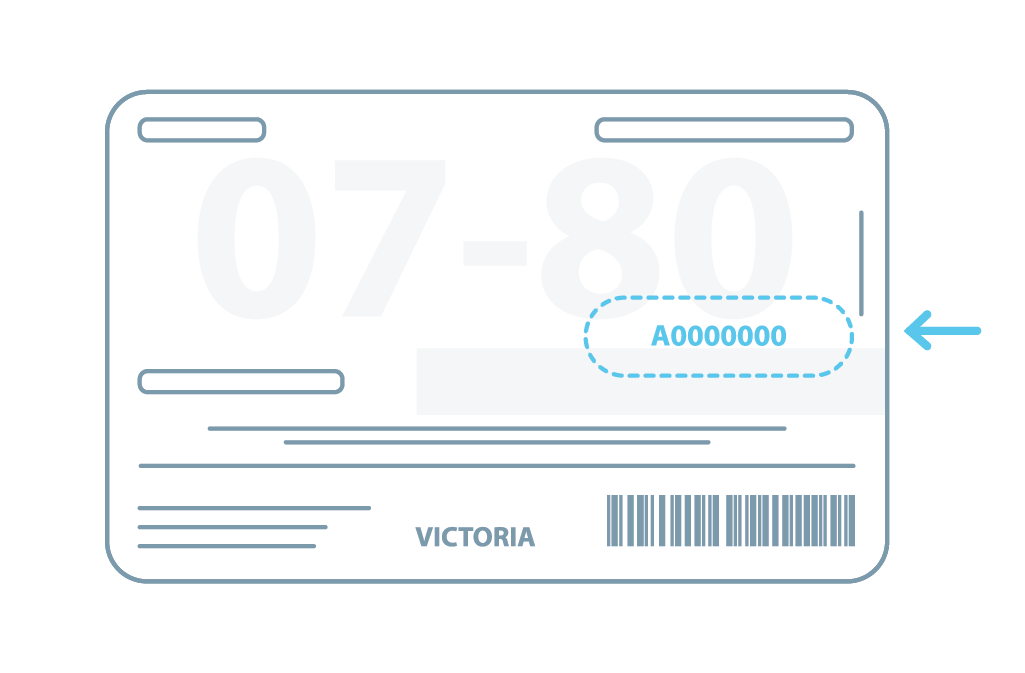
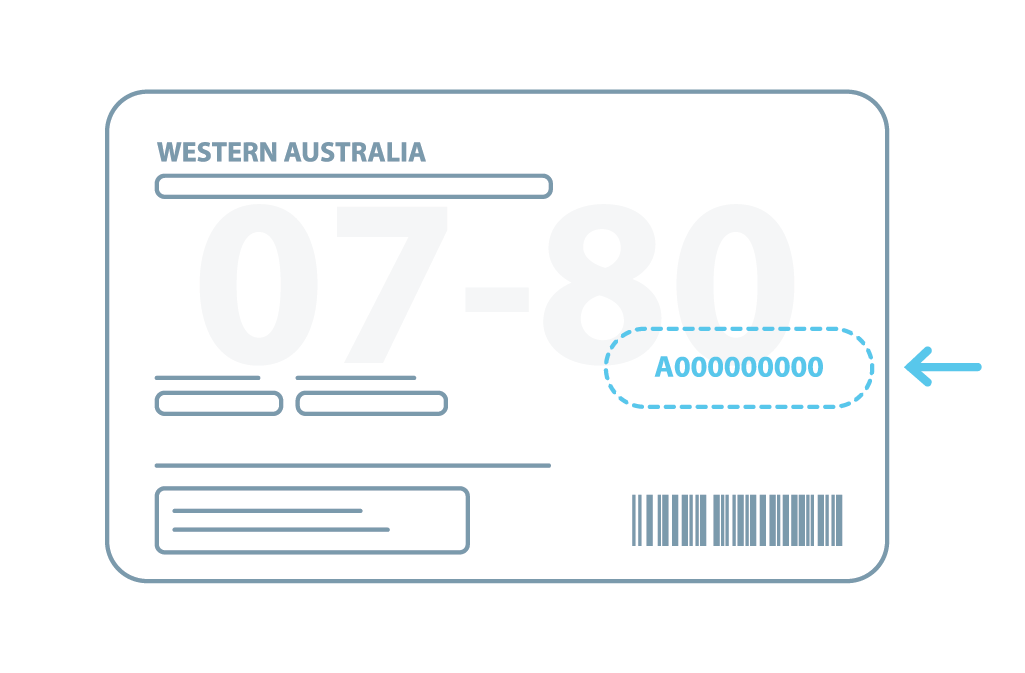
To minimise the risk of fraud and identity theft, all Australian State and Territory governments have introduced a DLCN. This is a unique identifier found on your Driver Licence and it is updated every time your licence is re-issued, whether that be due to it being stolen, expired, or reported lost.
As part of the verification process, your DLCN is checked against Government and non-Government databases to confirm it’s the most recent version.
The DLCN field is mandatory, so it’s important you know where to find it on your Driver Licence.
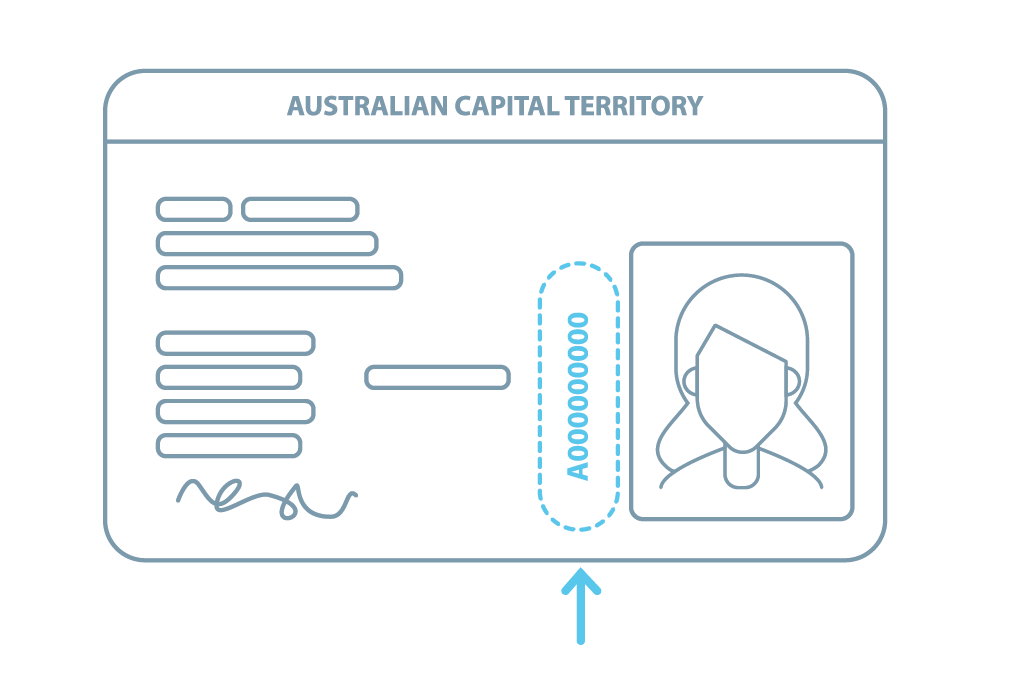
ACT
The DLCN is found on the front of the licence and runs vertically alongside the photo. It is alphanumeric (both numbers and letters) and displays 10 characters.
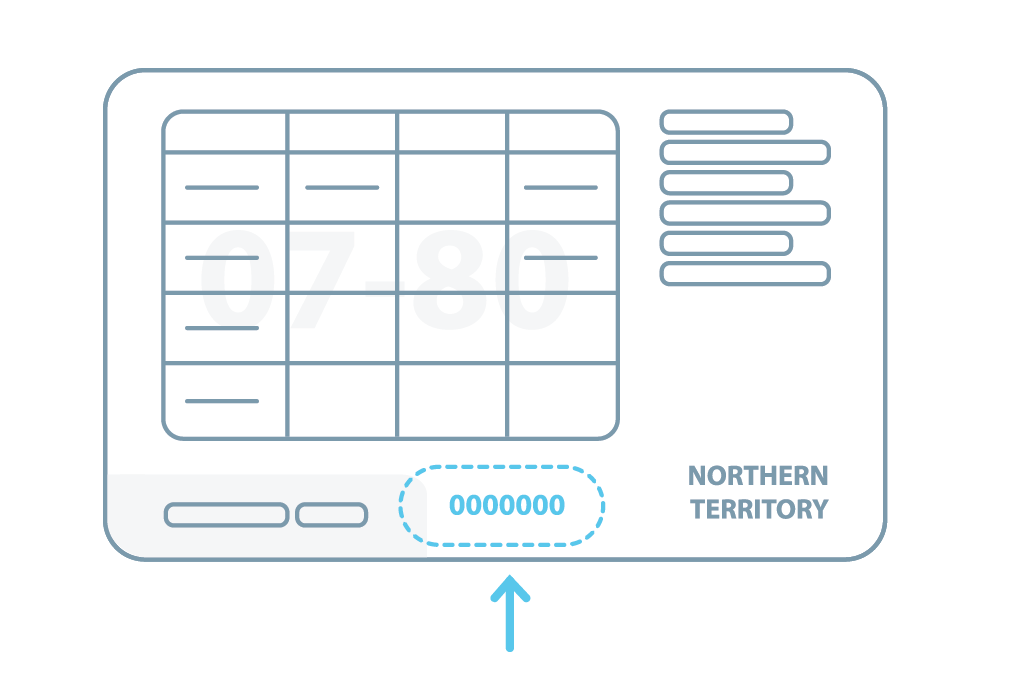
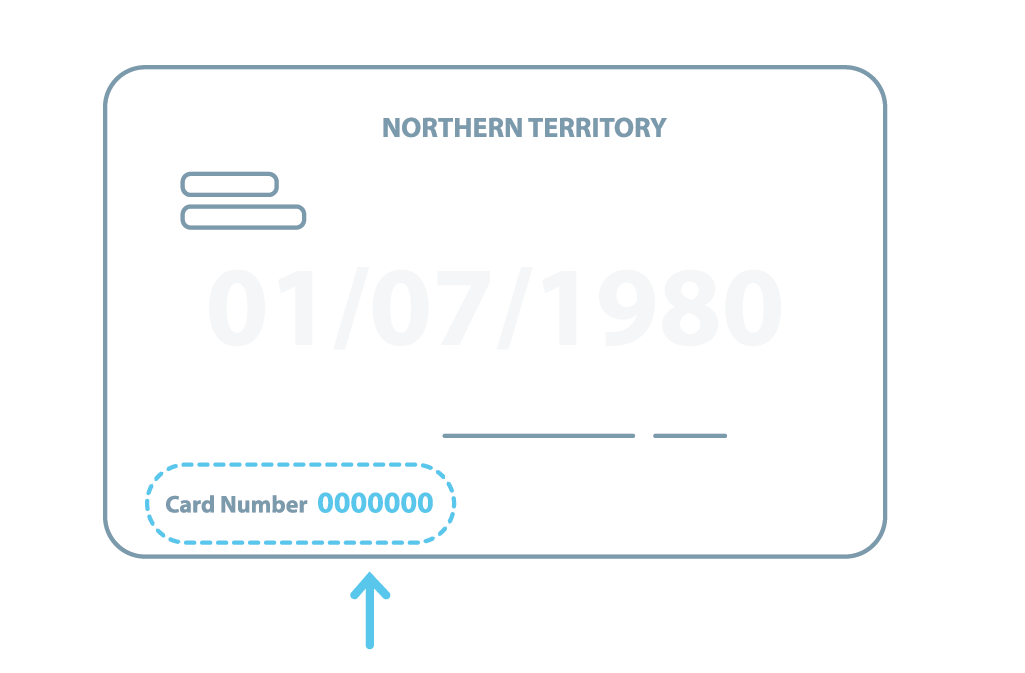
Northern Territory
The DLCN is found on the back of the licence and in the middle of the bottom section, OR on the back, bottom left-hand corner of the licence. It is made up of 6 to 8 numbers.
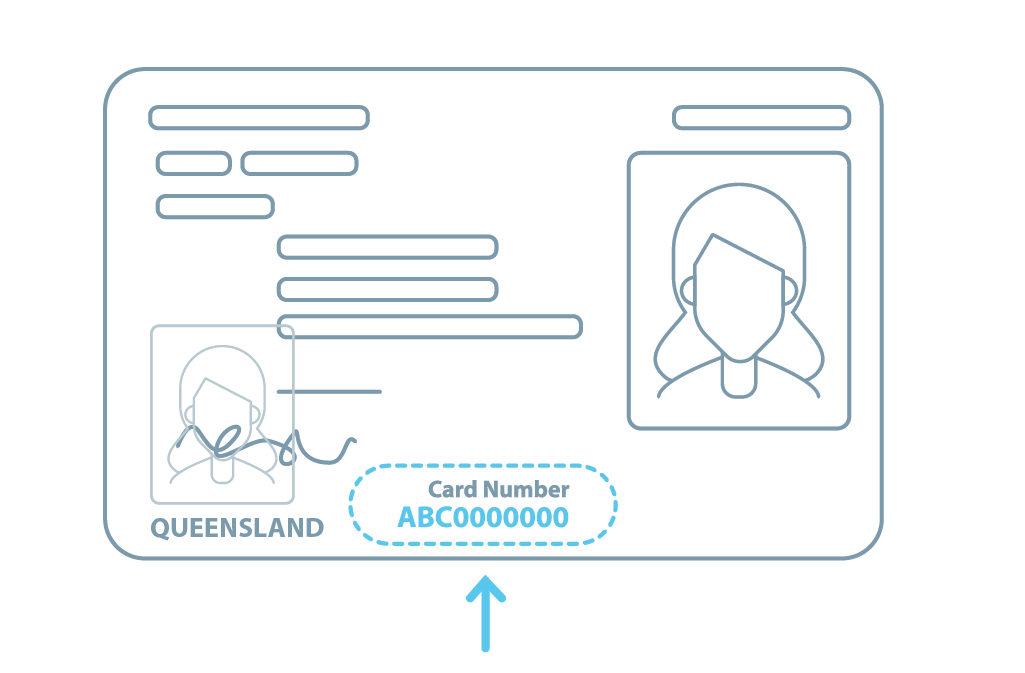
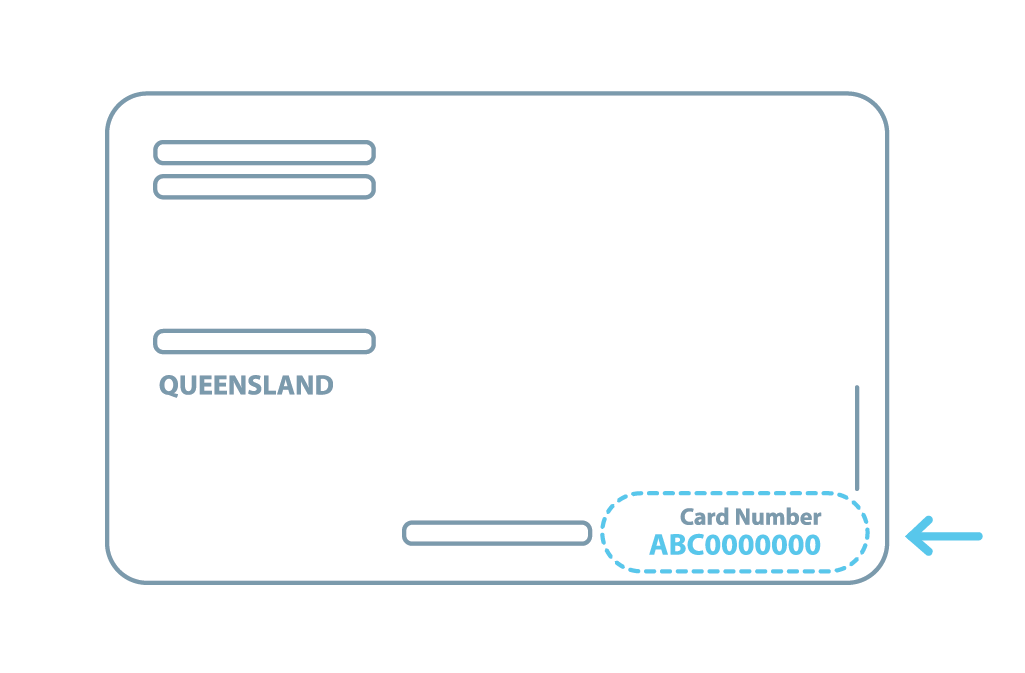
Queensland
The DLCN is found either on the front of the licence and in the middle of the bottom section, OR on the back, bottom right of the licence. It is alphanumeric (both numbers and letters) and displays 10 characters.
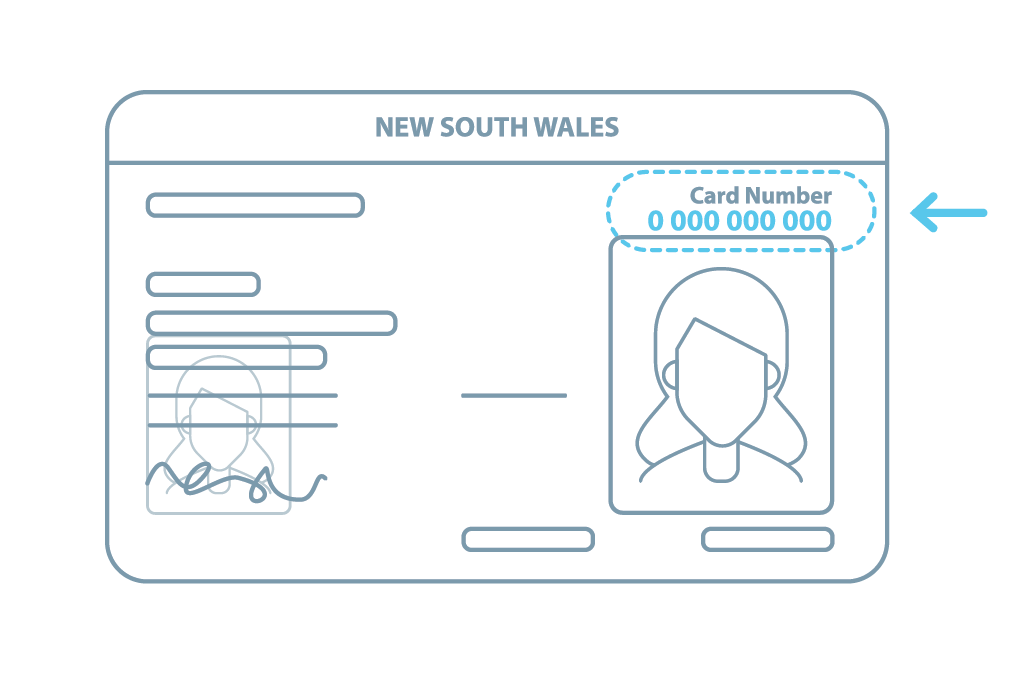
New South Wales
The DLCN is found on the front of the licence, on the top-right corner above your photo. It is made up of 10 numbers.
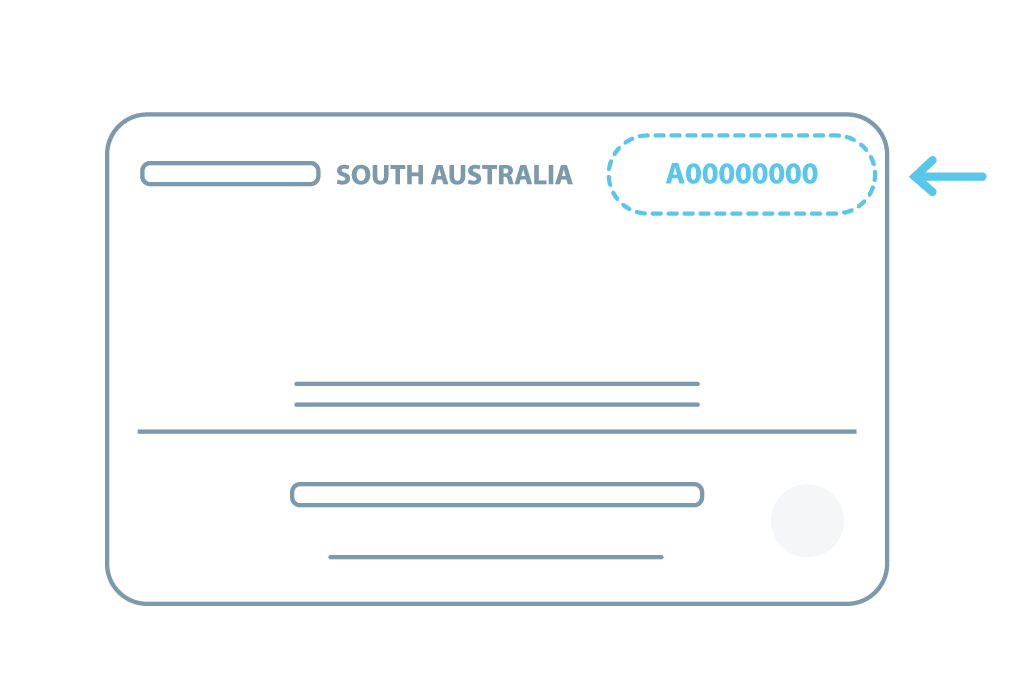
South Australia
The DLCN is found on the back of the licence, on the top-right corner. It is alphanumeric (both numbers and letters) and displays 9 characters.
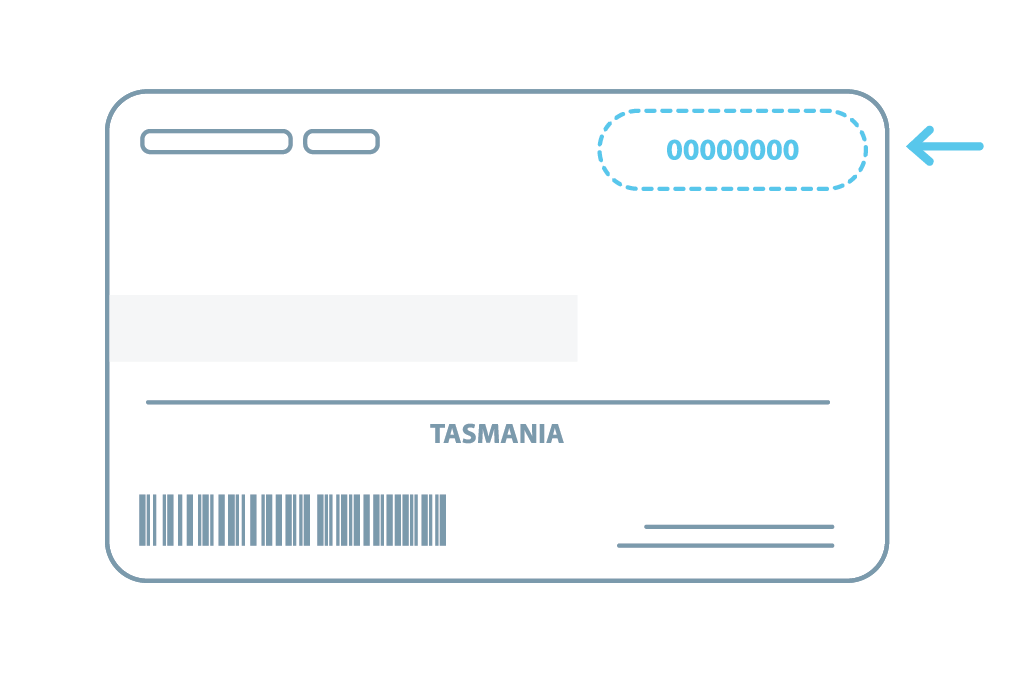
Tasmania
The DLCN is found on the back of the licence, on the top-right corner. It is alphanumeric (both numbers and letters) and displays 9 characters.
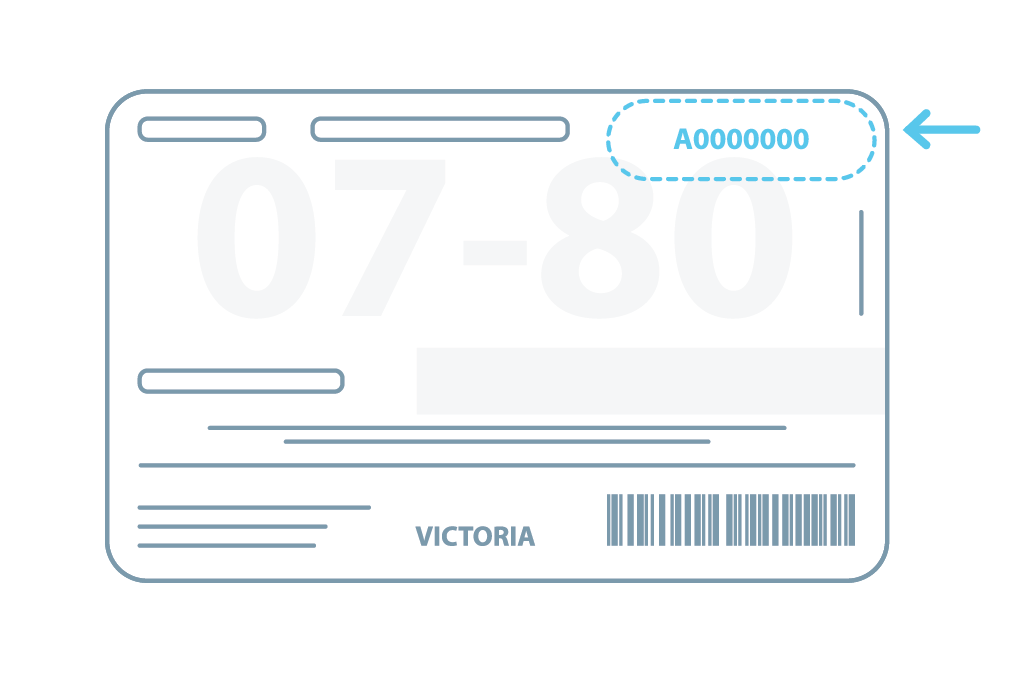
Victoria
The DLCN is found on the back of the licence, on the far right-hand side, just under your birth date, OR on the back of the licence, on the top right-hand corner, on top of your birth date. It is alphanumeric (both numbers and letters) and displays 8 characters.
The DLCN is found on the back of the licence, just above the middle of the card on the right-hand side. It is alphanumeric (both numbers and letters) and can display 8 to 10 characters.
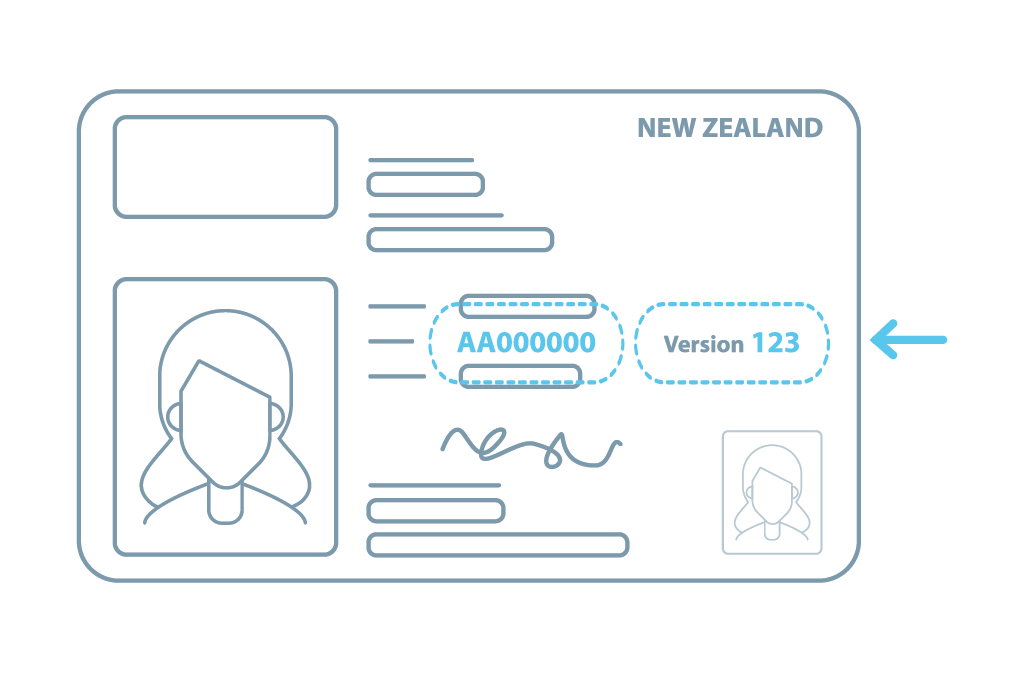
To minimise the risk of fraud and identity theft, New Zealand driver licenses include two key identifiers:
Driver Licence Number – a unique number that stays the same each time a new licence card is issued.
Version Number – this changes each time a new licence card is issued.
As part of the identity verification process, both numbers are checked against official databases to confirm the licence is current and valid.
These fields are mandatory, so it’s important to know where to find them:
Driver Licence Number is located on the front of the card, in the centre. It’s an 8-character alphanumeric code.
Version Number is also on the front, to the right of the Driver Licence Number. It’s a 3-digit number.